Contents
- Step 1: Locate Calendar Settings
- Step 2: Set the calendar to public
- Step 3: Get the correct embed URL
- Step 4: Paste the URL into the Google Calendar slide
For more information and guides, see what Google has to say.
Step One
Locate Calendar Settings
- Go to calendar.google.com
- If you’re not signed in, follow the steps presented to sign in.
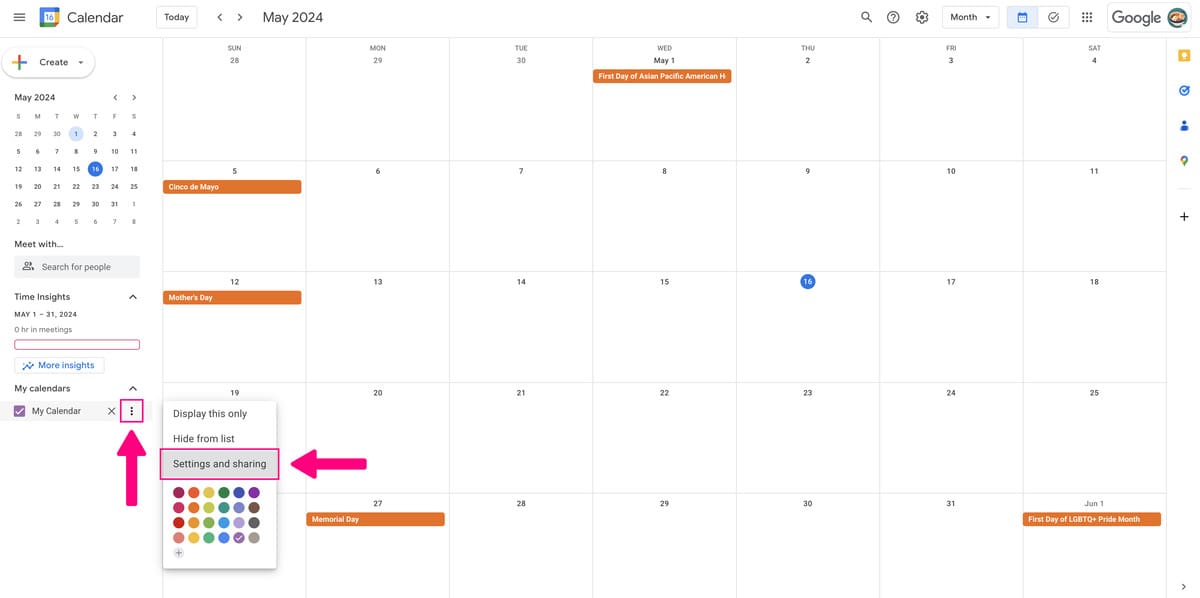
- Hover your mouse over the calendar you want to embed, located at the bottom left of your screen, and click the three-dot icon.
- Click “Settings and sharing”.
Step Two
Set the Calendar to Public
Your calendar must be available to the public for the slide to show it.
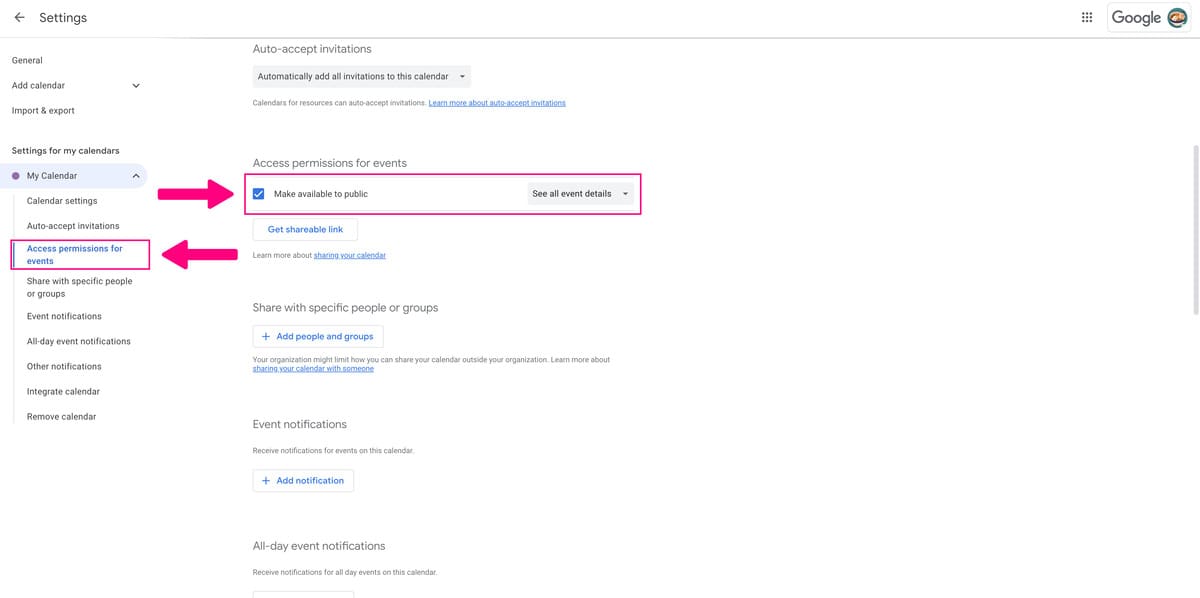
- On the left side of your screen find and click on the “Access permissions for events” tab.
- Make sure the “Make available to public” checkbox is checked.
Step Three
Get the Correct Embed URL
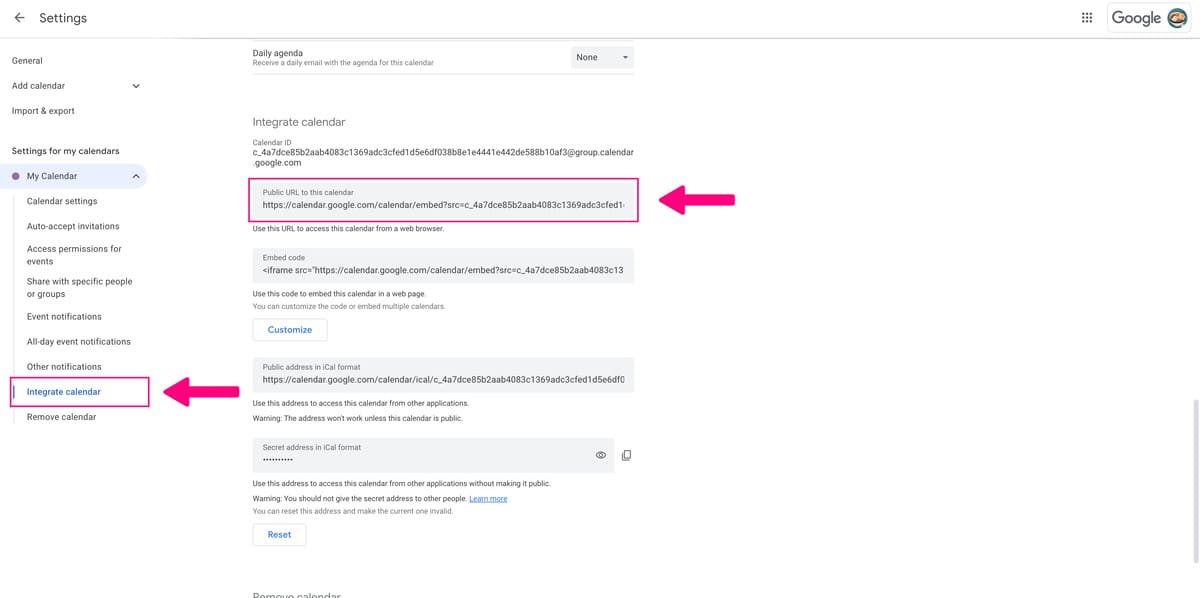
- On the left side of your screen find and click on the “Integrate calendar” tab.
- Click on the URL labeled “Public URL to this calendar”.
- Copy the URL to your pasteboard.
- (Mac: “Command + C”, Windows: “Control + C”)
Step Four
Paste the URL Into the Google Calendar Slide
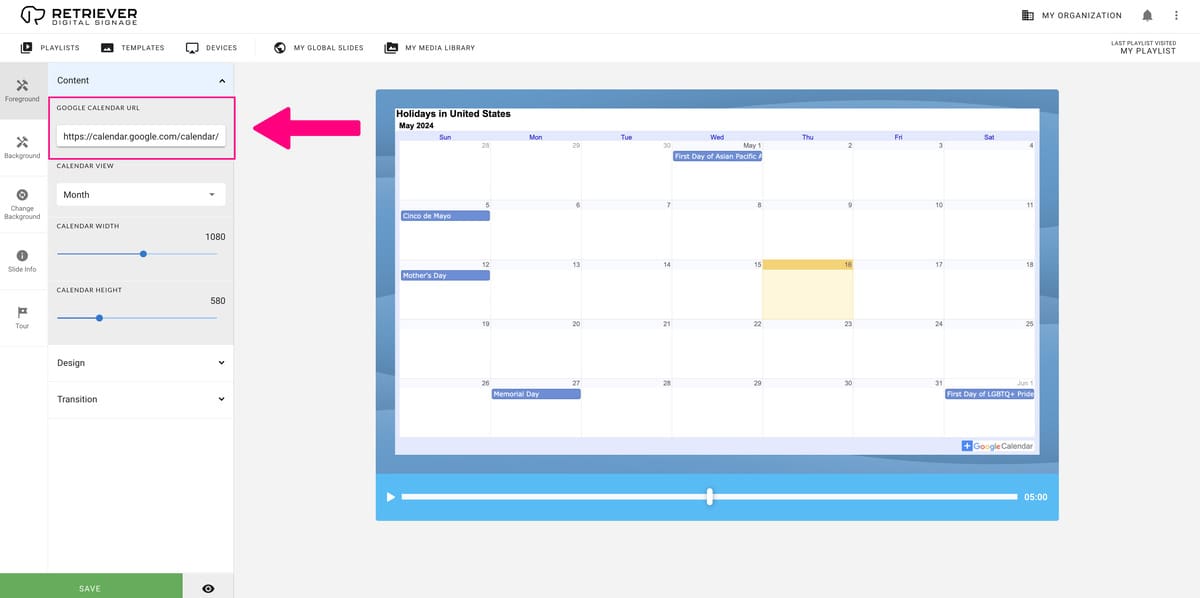
- Paste the copied embed URL into the “Google Calendar URL” field in the Google Calendar Retriever Slide.
- (Mac: “Command + V”, Windows: “Control + V”)