This quick-start guide will get you up and running in no time with just a few easy steps to edit your own digital sign.
Download a PDF version of this page for easy reference.
Step One
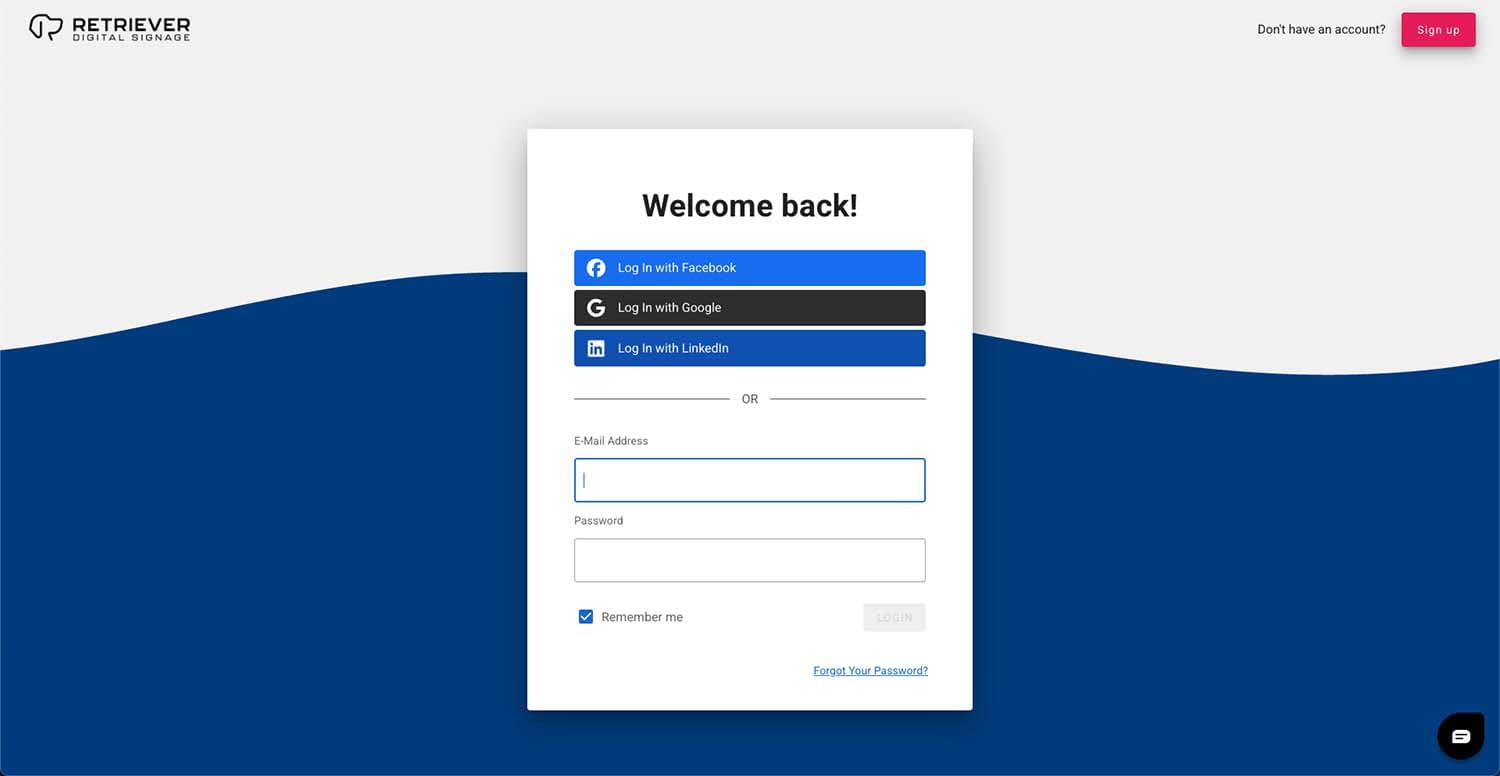
Log In to Retriever
- Go to retrieverdigitalsignage.com.
- In the top right corner, click Login.

Step Two
Enter Your Registered Username & Password.
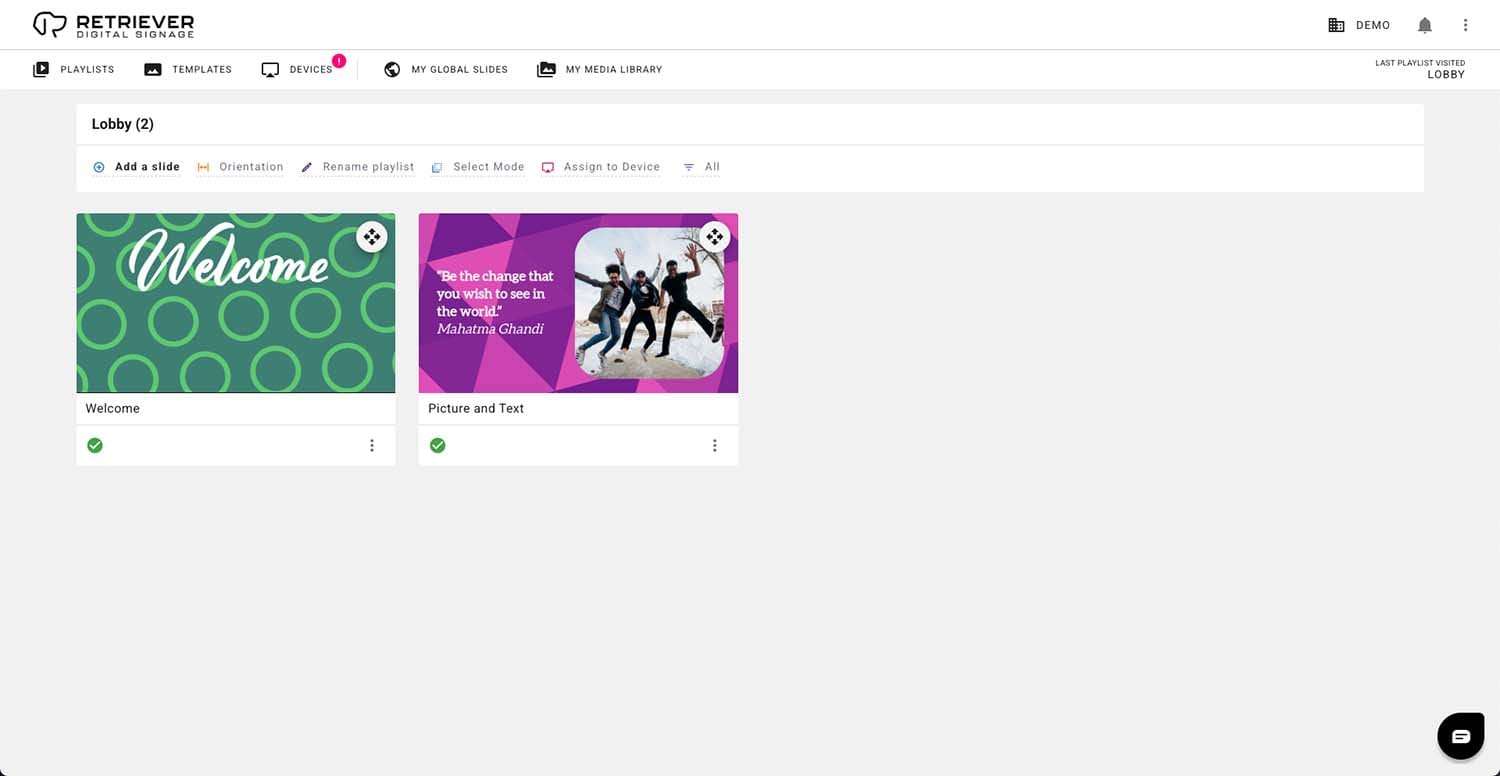
- You will be redirected to your Retriever Digital Signage playlists page.
Step Three
Create or Edit a Playlist
- If you would like to add to a current playlist, click on the playlist you would like to edit.
- If you would like to create a new playlist, click + New Playlist underneath the Playlists heading.
- You will need to name the playlist and choose from a Blank Playlist or a Starter Playlist.

Step Four
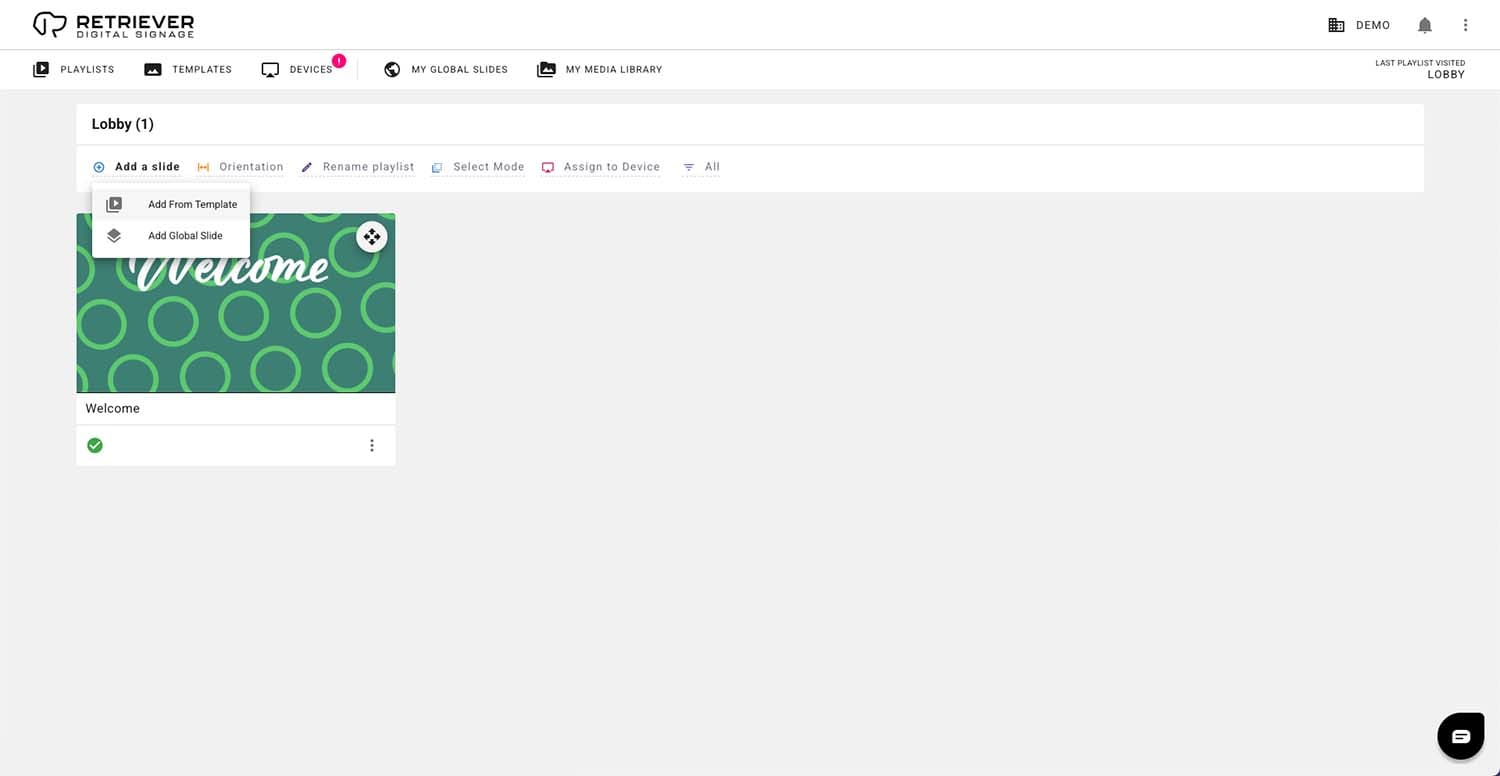
Add a Slide
- Click the + Add a slide button.
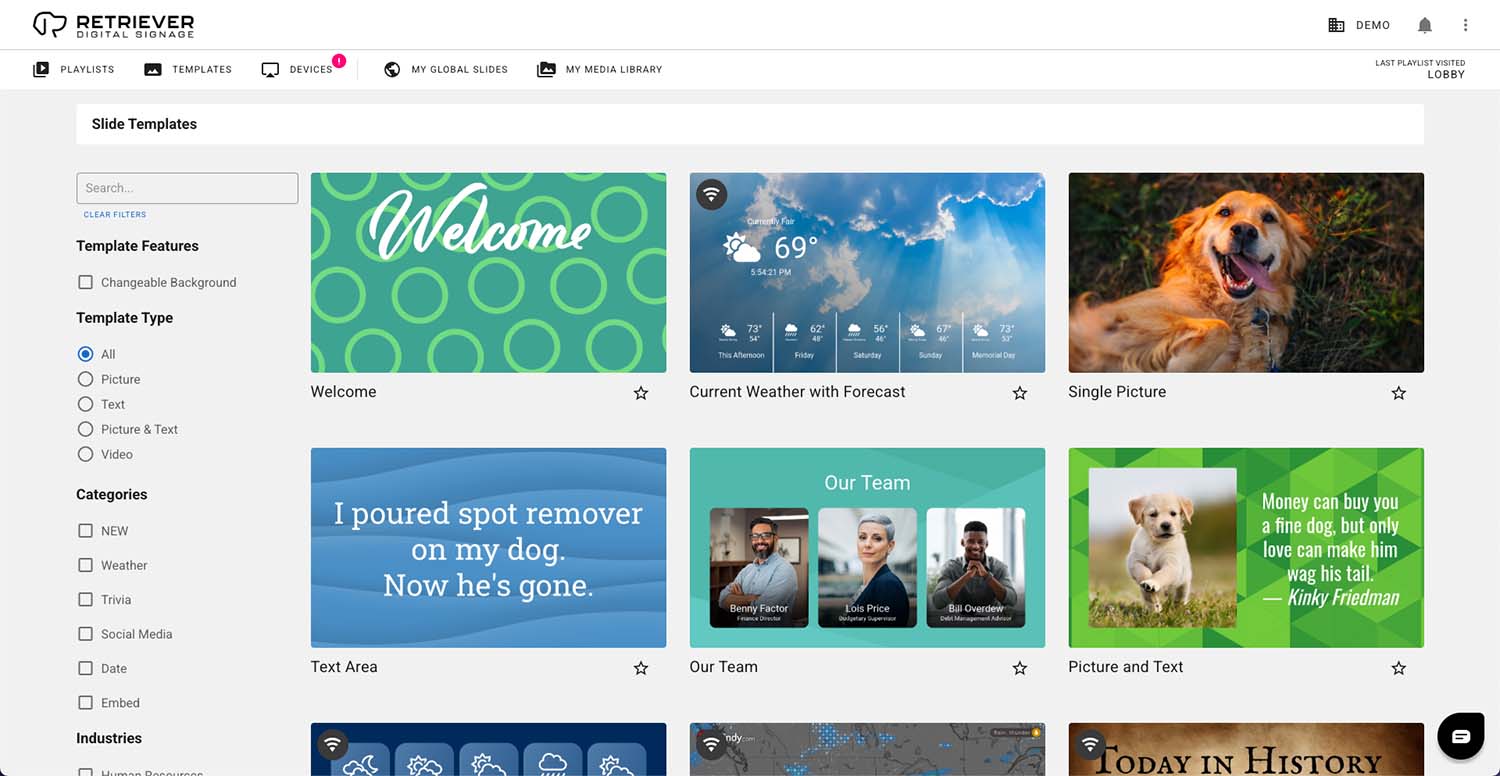
- Choose Add From Template to select a template from our template library.
- If you have previously created a global slide, you can instead choose Add Global Slide. For more information on Global Slides, check out our Global Slides Training Video covering this topic.
- For the rest of this tutorial, we’ll use the Picture and Text Slide.
Step Five
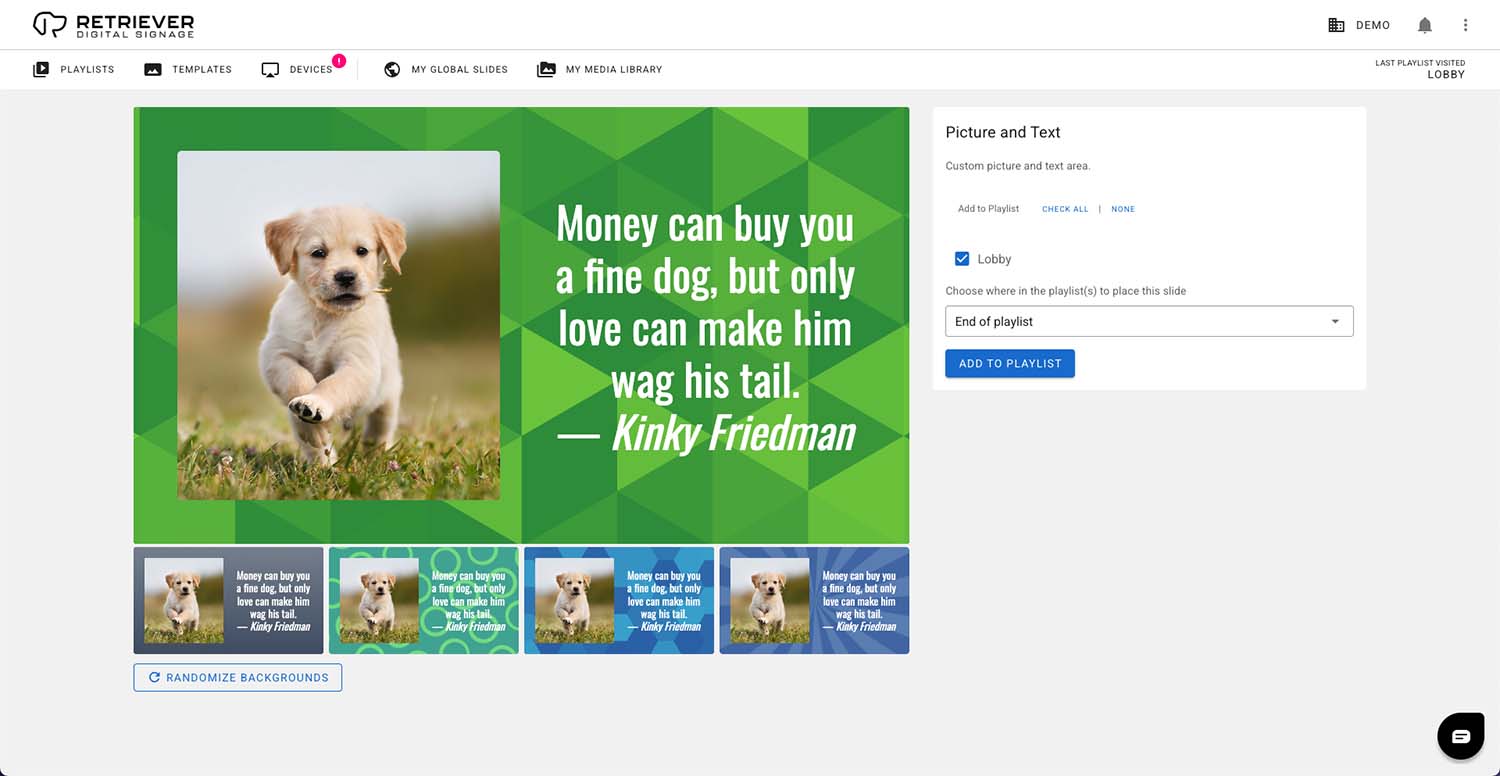
Choose Slide Placement
- You may select one or multiple playlists.
- You may choose to add the slide at the beginning, middle, or end of the selected playlists.
- Then click Add to Playlist.
Step Six
Edit the Slide
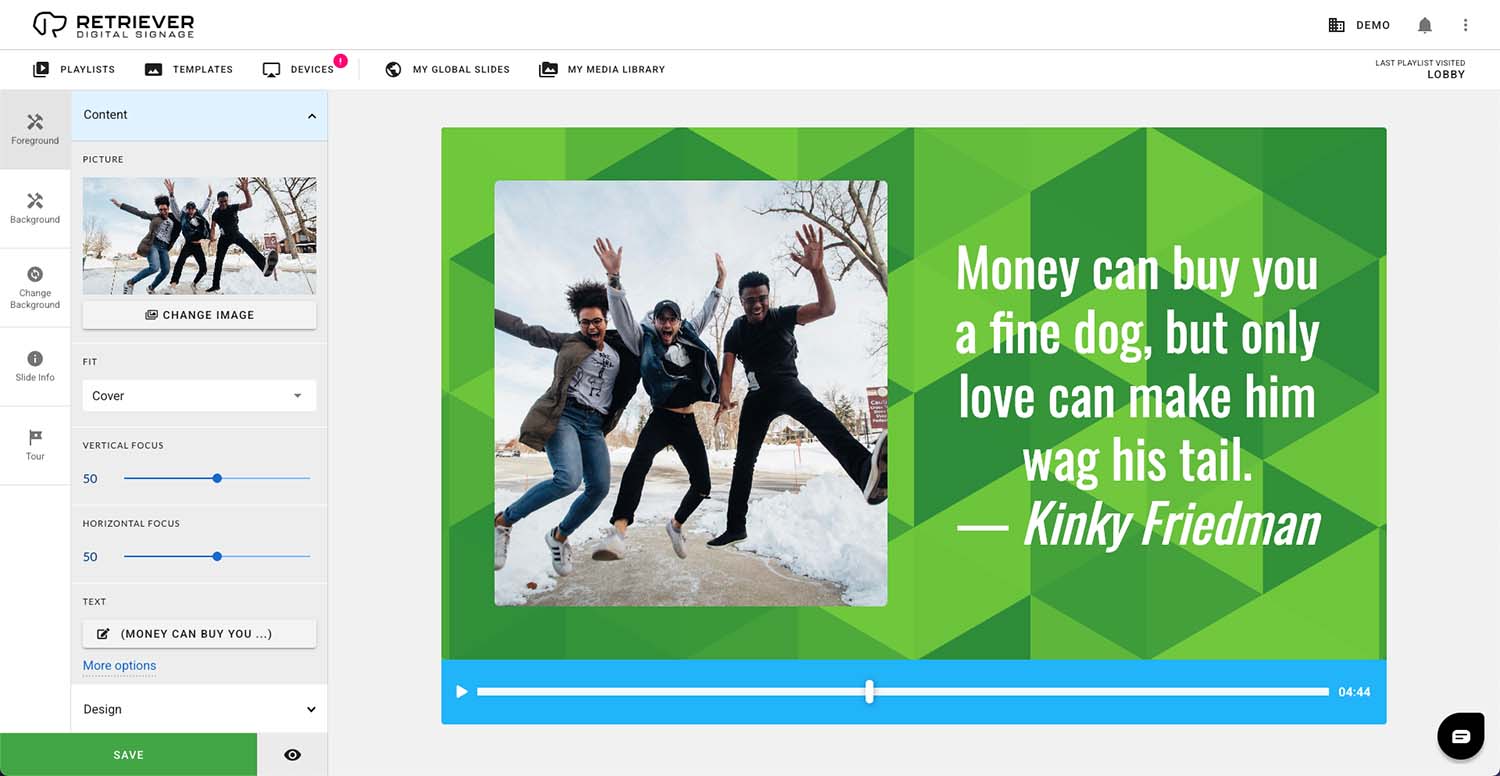
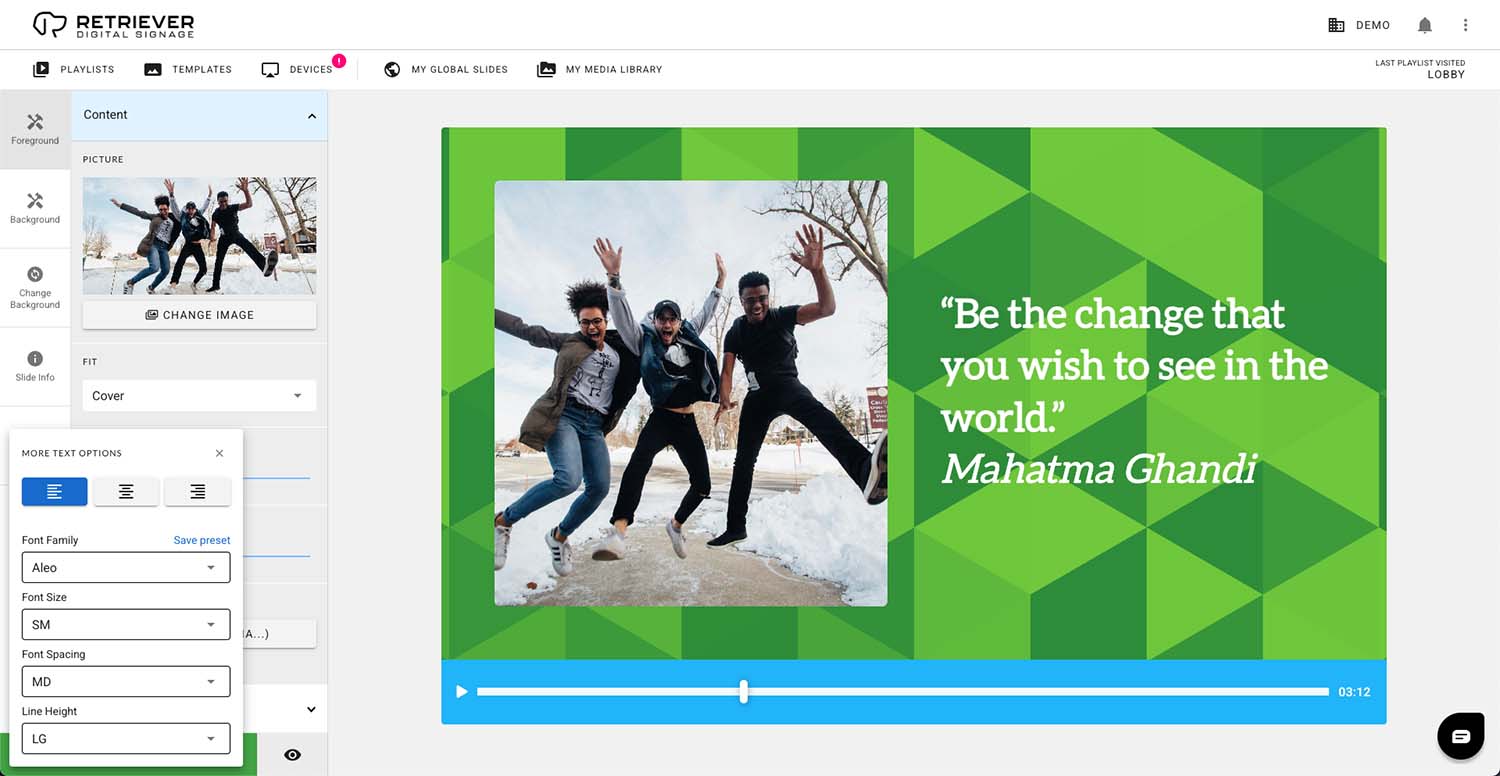
- To replace the photo, click the CHANGE IMAGE button.
- You can choose from your existing photo library if you have images used on previous slide designs. Otherwise, click Add New.
- From here you can choose from multiple sources for your image.
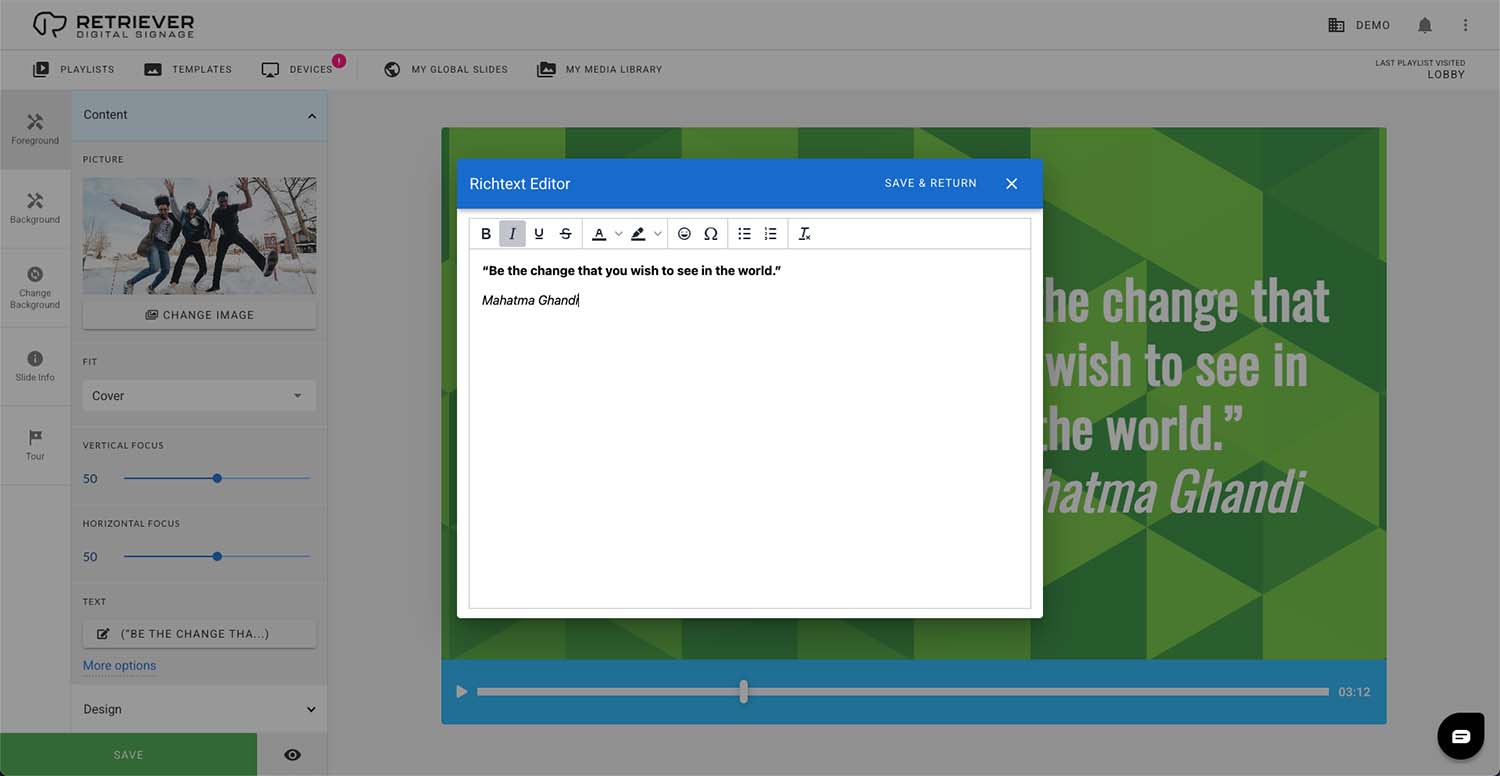
- To edit the text, click on the grey box that contains the text in the Content section.
- A rich text editor will appear, and you can edit your text.
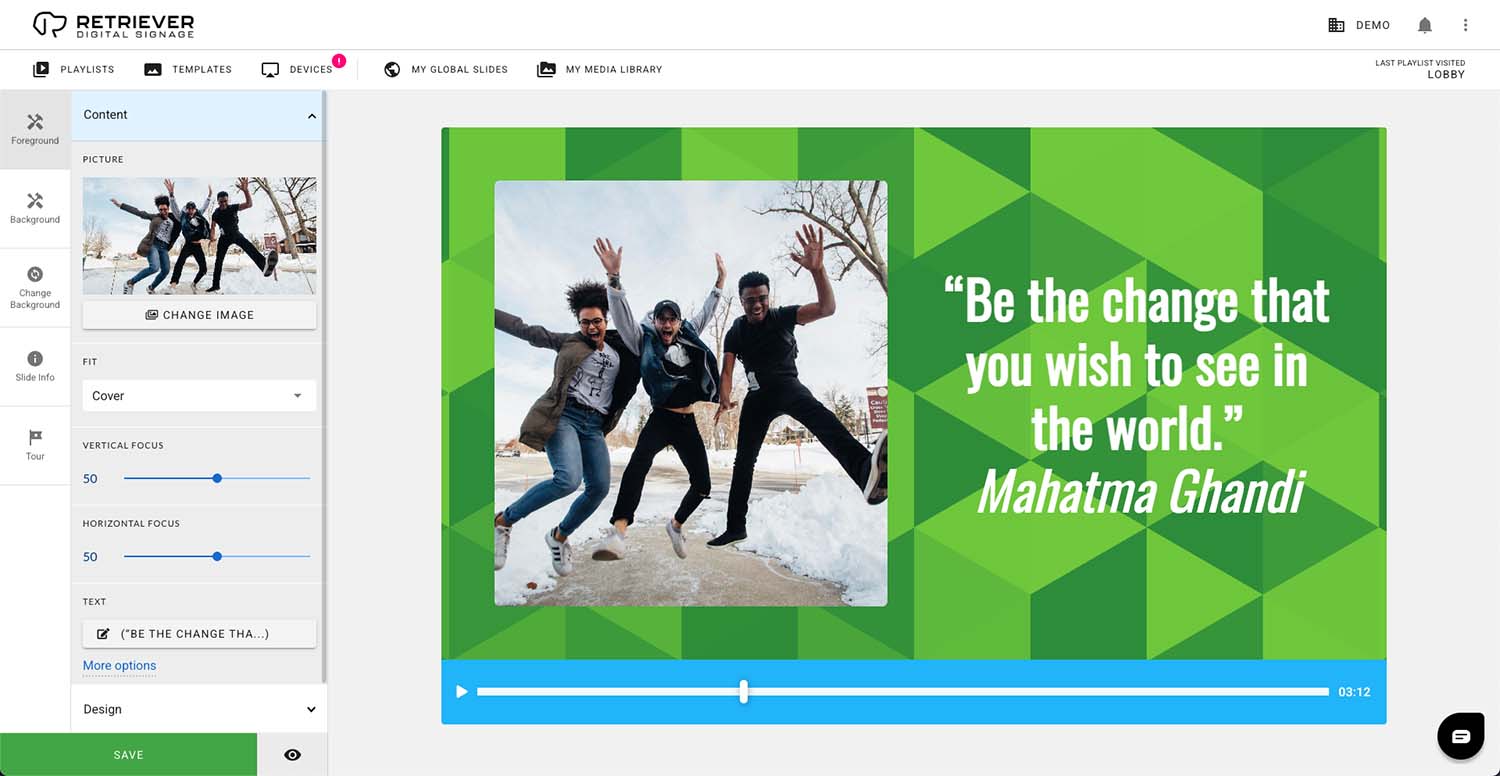
- Click Save & Return when you are finished editing.
- Click on More options to change font, size, spacing, line height, and alignment (left, center, right).


Step Seven
Additional Customization
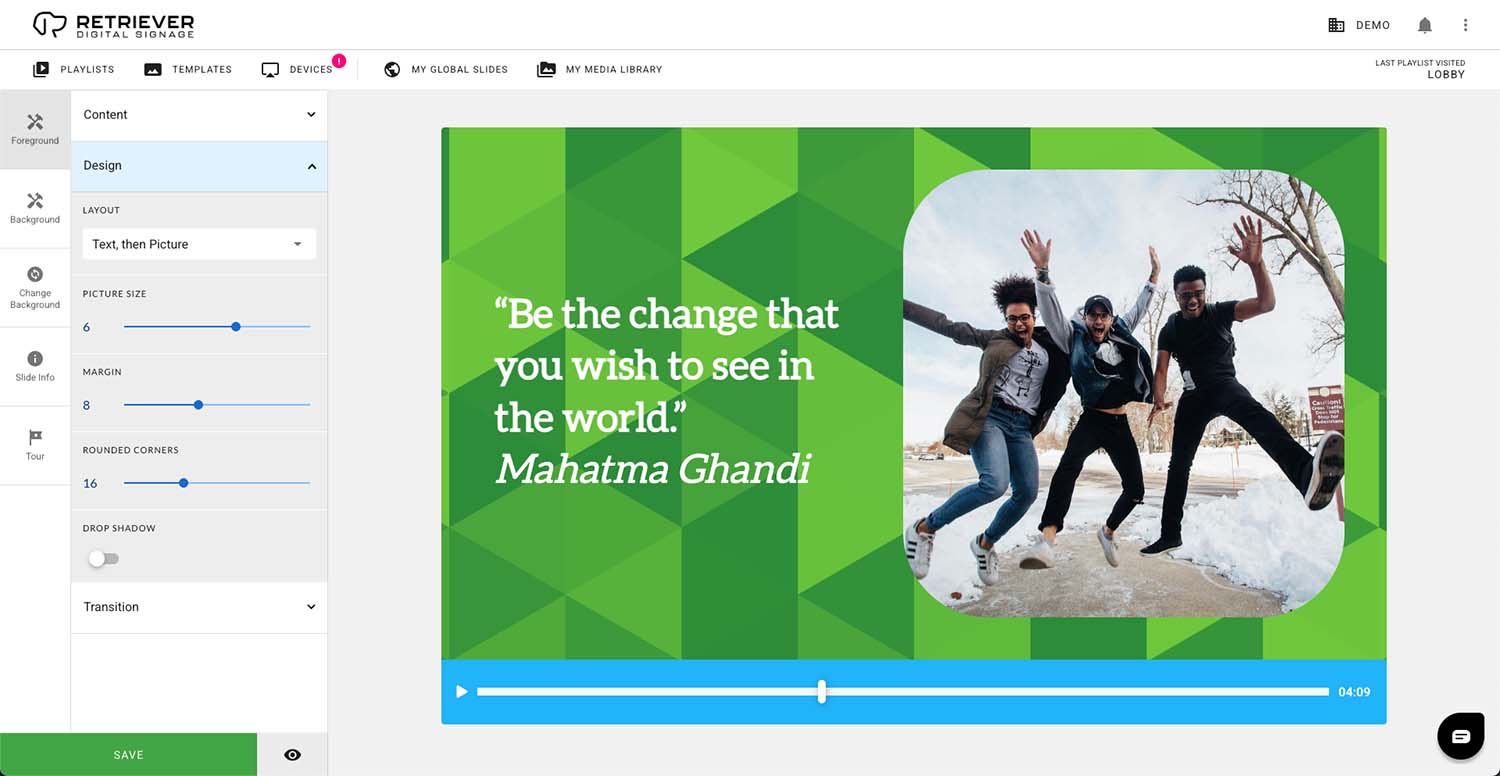
- You may change settings in the Design or Transition sections to adjust the layout and animation of the slide.
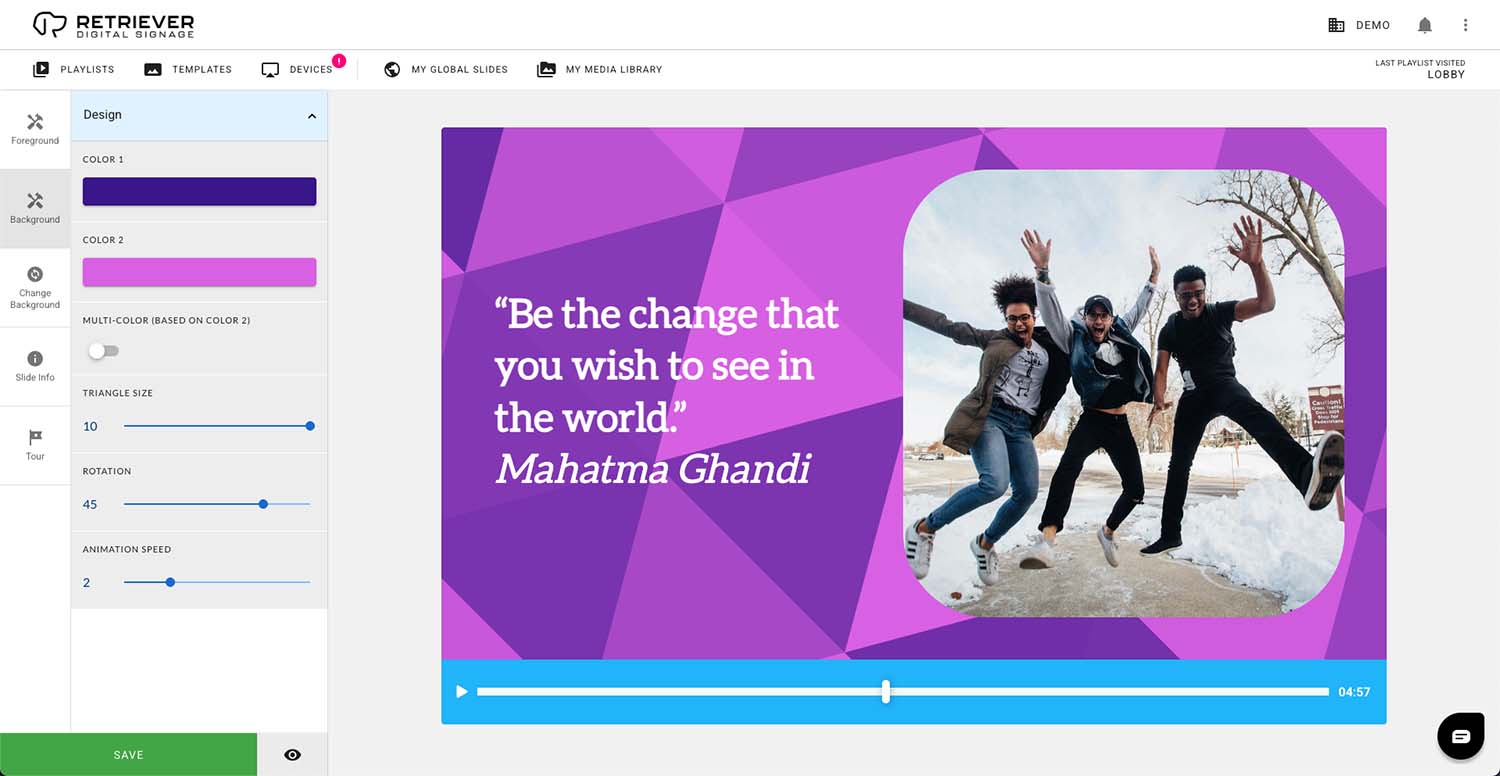
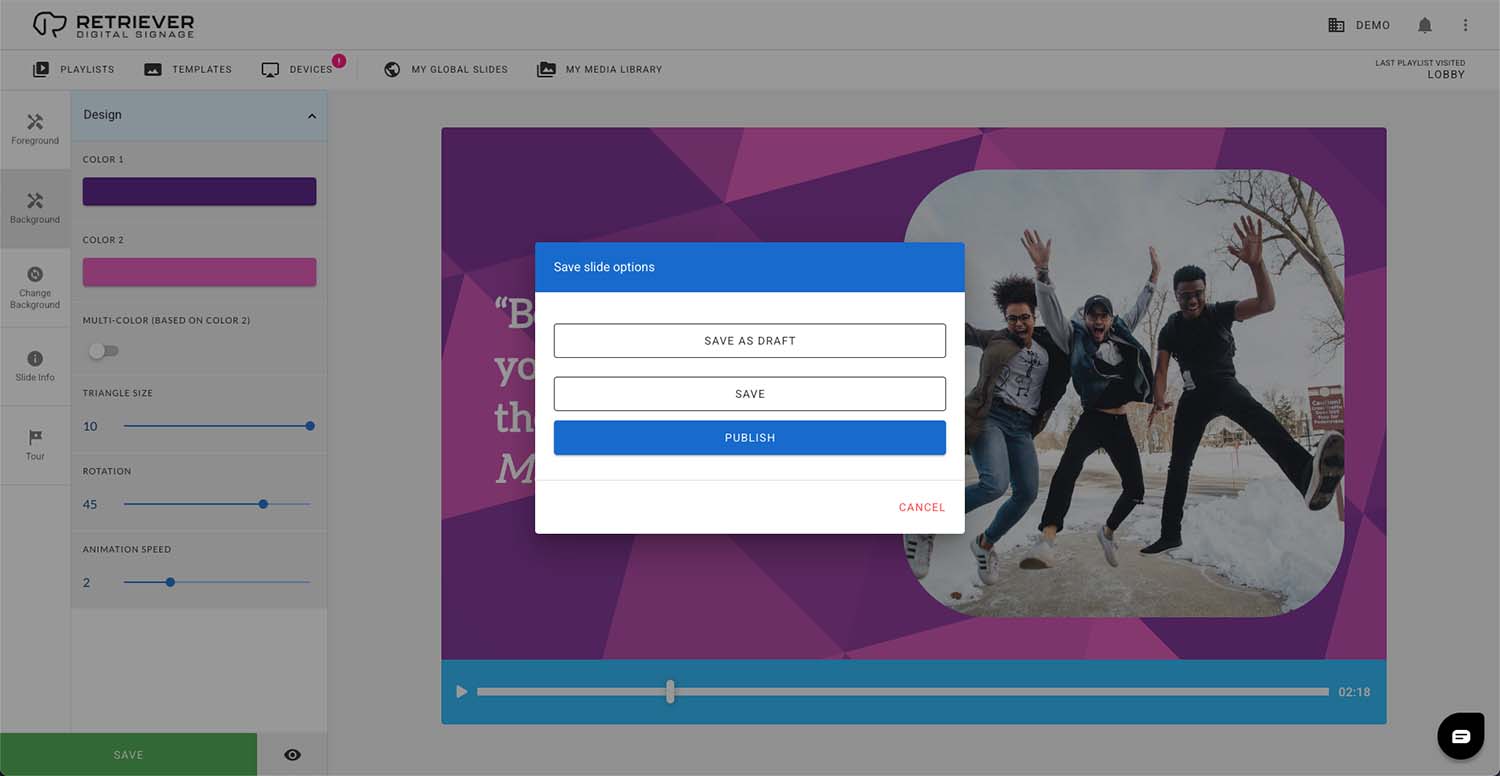
- If you click the Background button and click on the Design tab, you can edit the background color, as well as make other design adjustments.
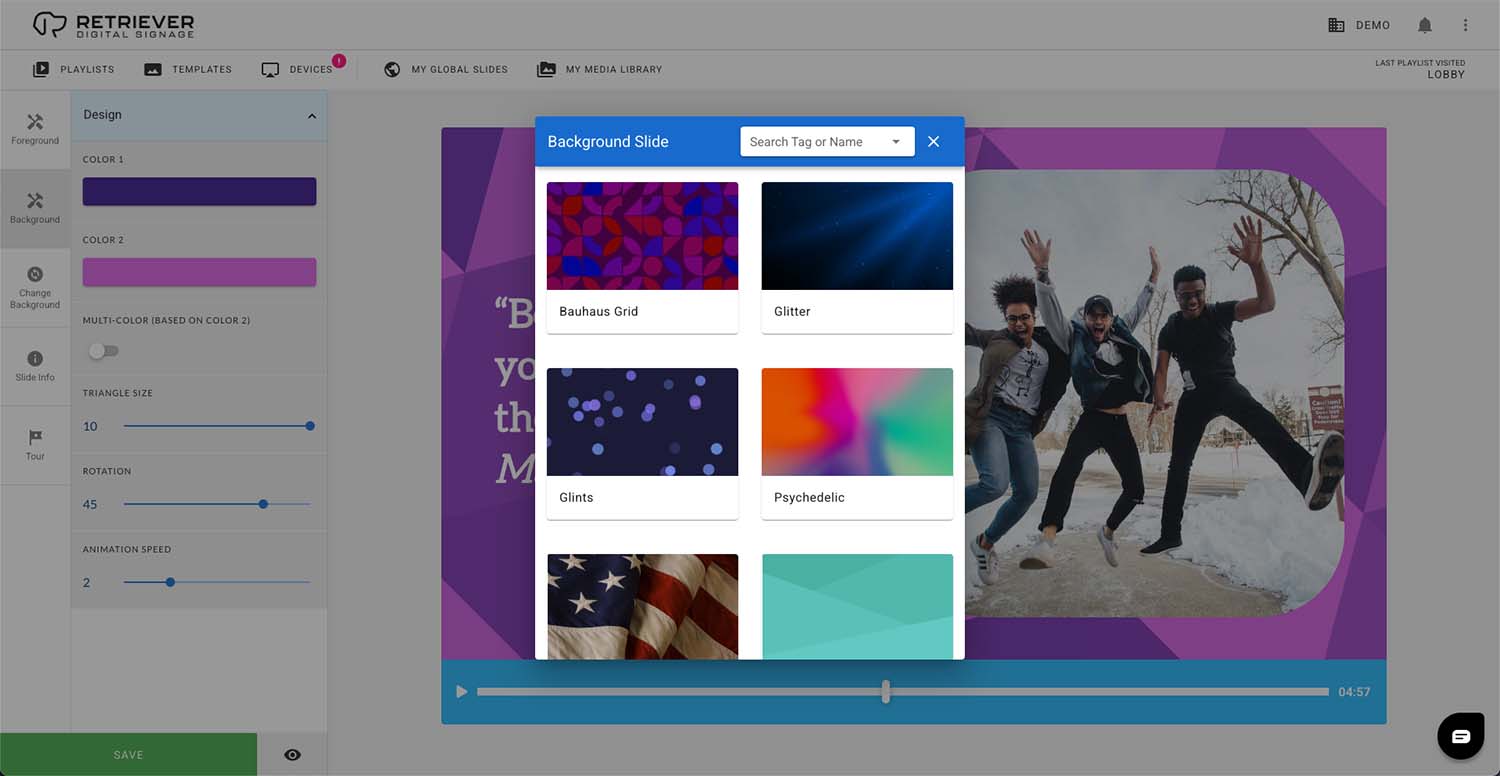
- Below the Background button, the Change Background button allows you to select a different background template entirely.
Step Eight
Save and Publish
- Once you’ve made all the changes that you’d like, click the SAVE button.
- If you are ready to use the slide, click the Publish button.
That’s It!
You have successfully created, edited, and published your own slide on Retriever Digital Signage.
For more digital signage tutorials, check out our training videos. They will get you up and running with quick, in-depth explanations of our various features.