Retriever Digital Signage allows you to schedule slides on your playlists to give you the most flexibility and control. Schedules have many uses:
- Schedule a slide to be published. For example, major announcements, employee recognition, and holiday greetings can all be planned in advance.
- Schedule a slide to be unpublished. This is useful for promotions or holiday hours that should end after a fixed period.
- Set a recurring schedule. Recurring schedules are perfect for showing different information on certain days of the week or for showing content daily only at certain times.
Scheduling slides ensures your content reaches the right audience at the right time, without the need for manual updates.
Training Video: Scheduling
We also have a training video that walks you through the process of scheduling slides. If you just need a quick overview, check out that video. If you need more in-depth direction, keep reading.
How to Schedule a One-Time Action
- Go to your Retriever playlist and find the slide you want to schedule.
- From the three-dots menu, choose “Slide Settings” to go to the slide settings page.
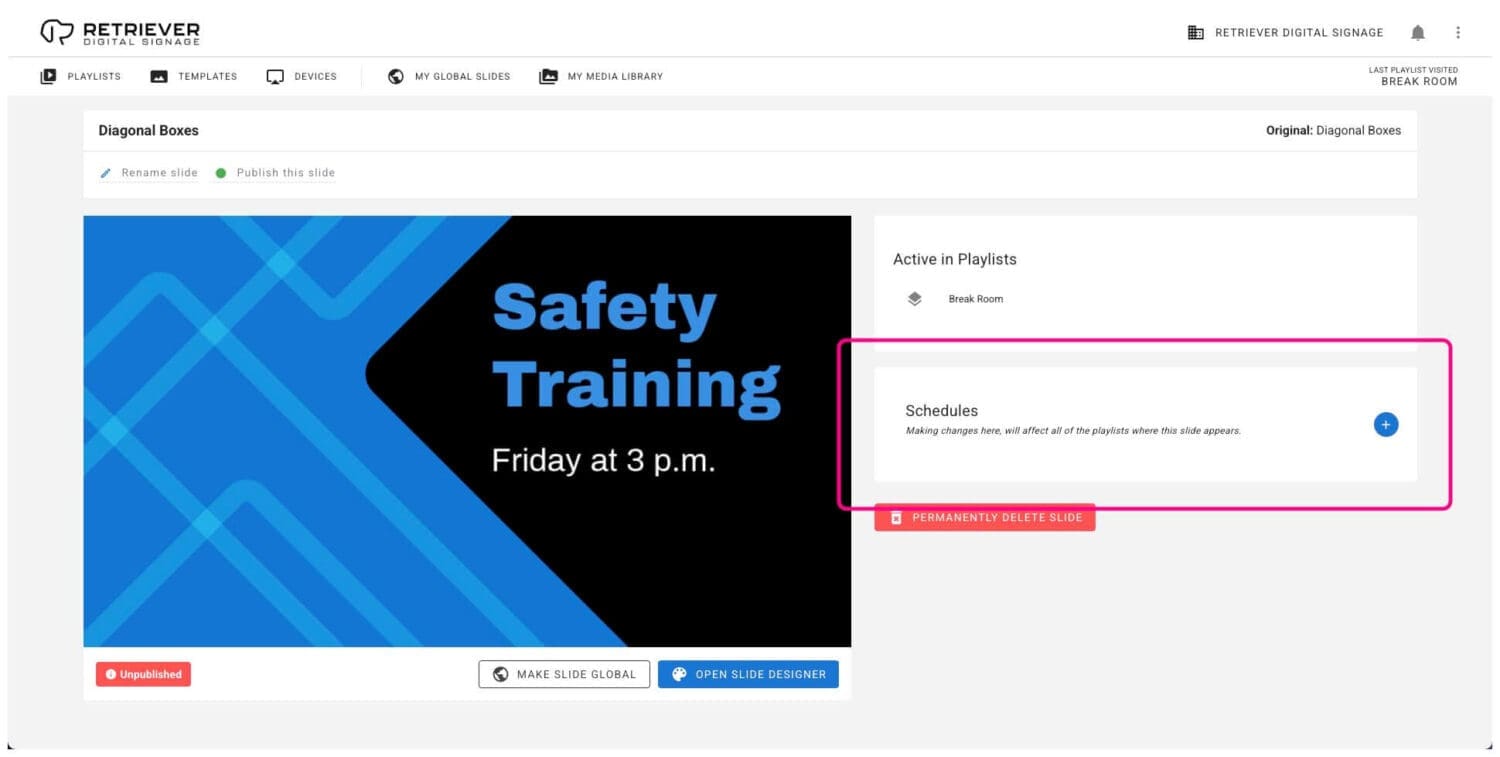
- In the section labeled “Schedules,” click the blue “+” (plus symbol) button to add a schedule.
- Choose whether you want to schedule the slide to publish or unpublish and click “Next.”
- To publish a one-time action, choose “Once” and click “Next.”
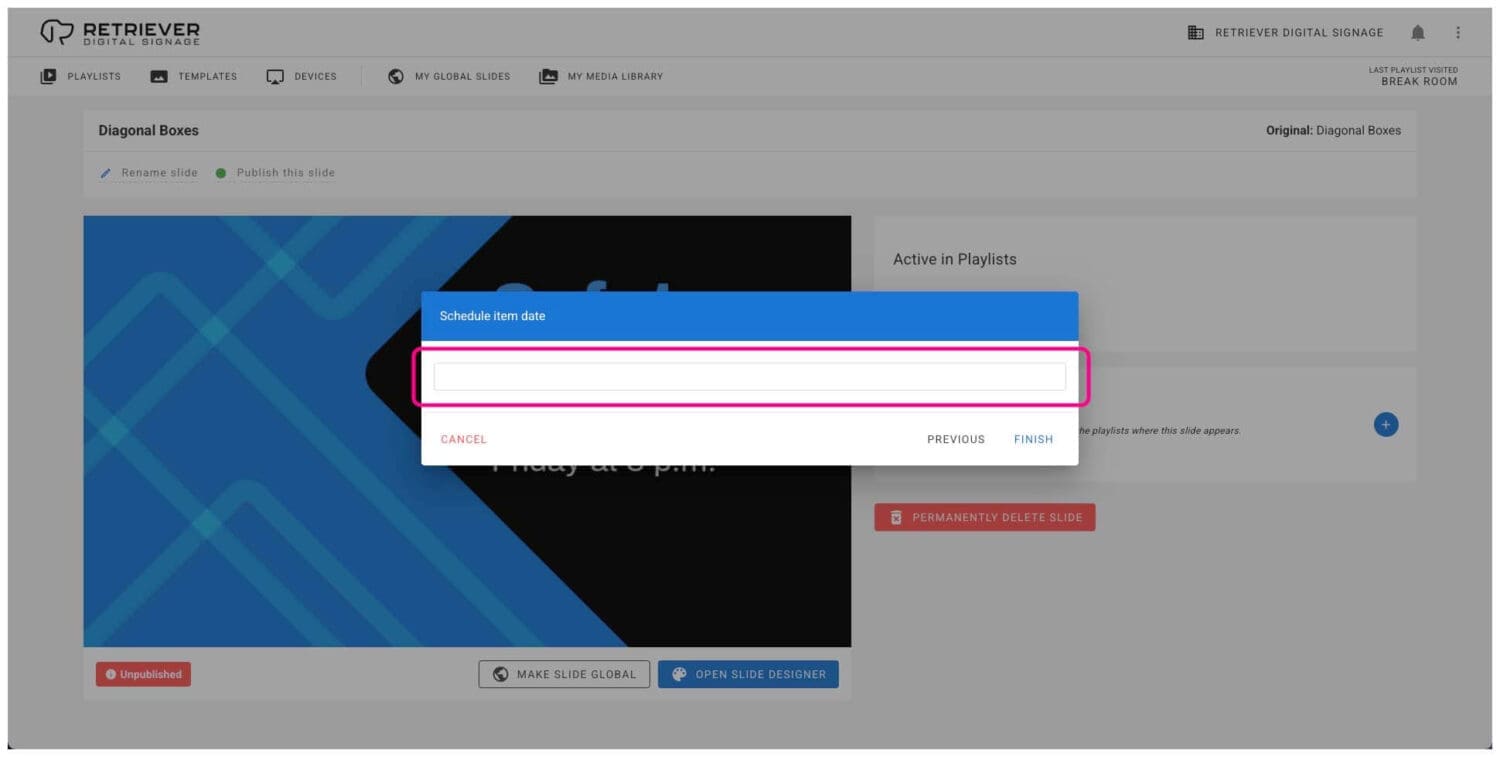
- Click in the date picker field.
- Choose a date from the calendar picker and click “Ok.”
- Choose a time and click “Ok.”
- Click “Finish,” and your new schedule will show in the list of scheduled actions.
- You can add more schedules to alternate publishing and unpublishing the slide.
How to Schedule a Recurring Weekly Action
- Go to your Retriever playlist and find the slide you want to schedule.
- From the three-dots menu, choose “Slide Settings” to go to the slide settings page.
- In the section labeled “Schedules,” click the blue “+” (plus symbol) button to add a schedule.
- Choose whether you want to schedule the slide to publish or unpublish and click “Next.”
- To publish a recurring action, choose “Weekly” and click “Next.”
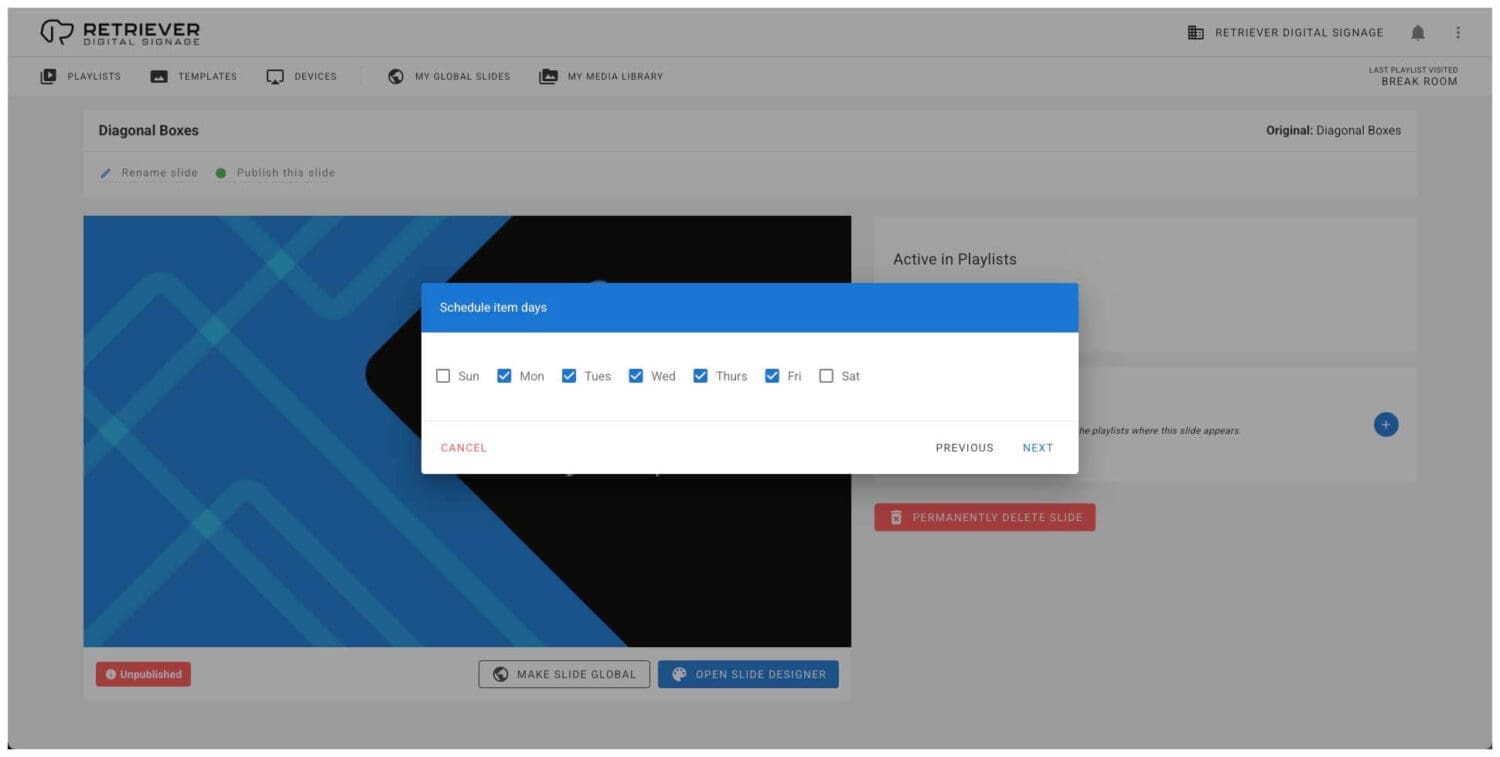
- Choose the day(s) of the week on which you want this action to occur, then click “Next.”
- You can choose a single day (e.g., every Tuesday) or multiple days (e.g., Monday through Friday each week).
- It is important to note that this action (publish or unpublish) will occur on each day that is checked. It is not a duration.
- Choose a start date and time. Click in the date picker field.
- Choose a date from the calendar picker and click “Ok.” The recurring action will not start until this date.
- Choose a time and click “Ok.” If you chose multiple days of the week, this is the time the action will happen on each chosen day.
- After clicking “Next,” you will be able to choose for how long you want the schedule to continue and click “Next.”
- Select “Forever” to continue the schedule indefinitely.
- Select “End Date” to choose a date and time to stop the schedule.
- If you selected “End Date,” click in the date picker to choose a date and time like you did for the start date and time.
- Click “Finish,” and your new schedule will show in the list of scheduled actions.
- Important! Since this is a recurring schedule, remember to add more schedules to alternate publishing and unpublishing the slide.
Alternating Publish and Unpublish Schedules
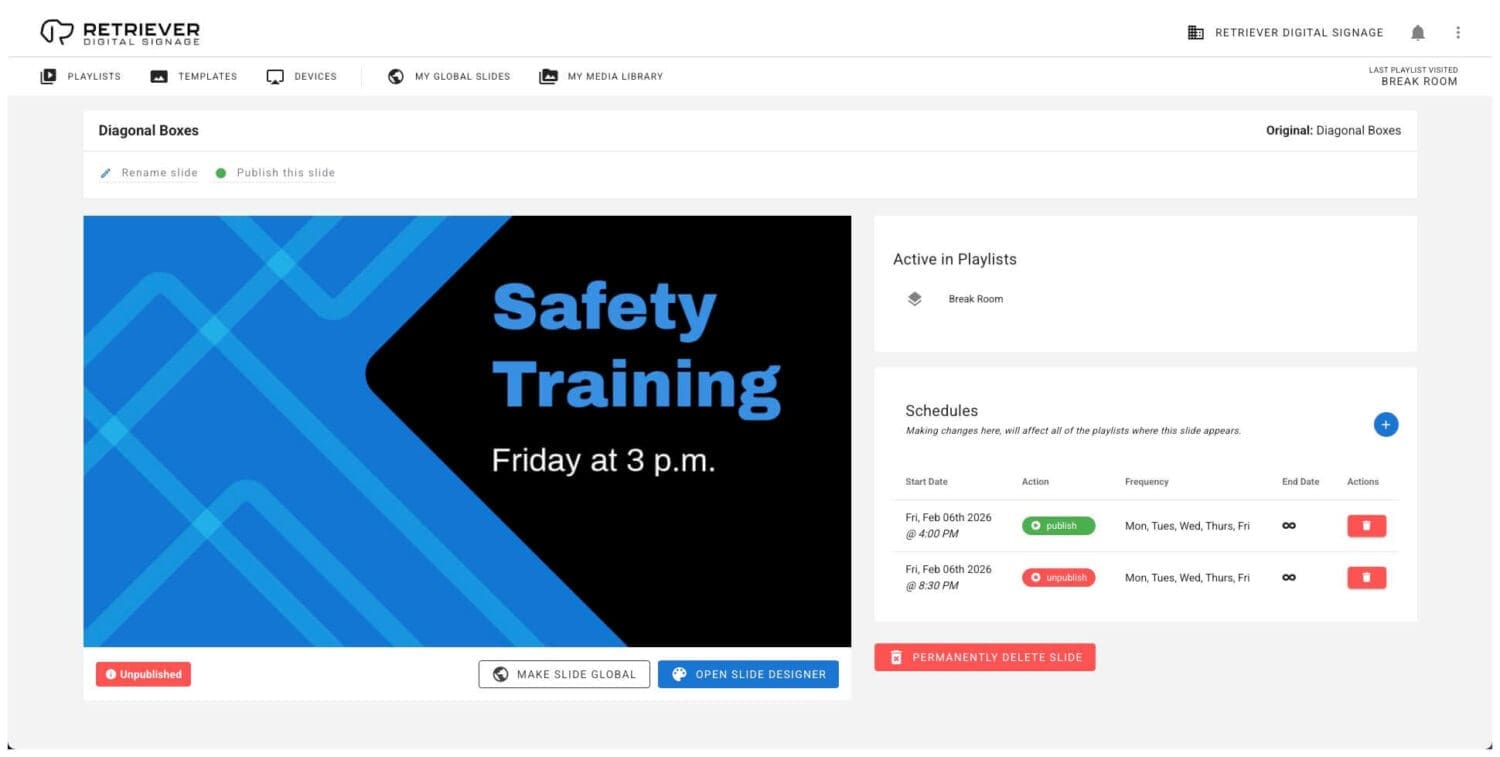
It is important to note that schedules should alternate between publishing and unpublishing actions.
Important Concept
Schedules represent an action, not a duration. Think of a publish schedule as when a slide starts playing and an unpublish schedule as when it stops. In order for a repeating schedule to happen, you will need both.
Scheduling Examples
- Daily: Suppose that you have a “Happy Hour” slide that you want to have published between 2 p.m. and 3 p.m. on weekdays. To do this, you would need to add two schedules: one schedule would publish on weekdays at 2 p.m. and the other schedule would unpublish on weekdays at 3 p.m.
- Once a Week: Similarly, if you have a “Tuesday Lunch Special” slide that you want to have published every Tuesday between 11 a.m. and 2 p.m., this would also require two schedules: one to publish it on Tuesday at 11 a.m. and one to unpublish it on Tuesday at 3 p.m.
- Weekdays: However, if you want a slide to be published all day every weekday but not on the weekends, you could schedule a recurring (weekly) publish action every Monday morning and schedule a recurring unpublish action every Friday night.
Scheduling Tips and Best Practices
- After scheduling your slides, confirm that all start times and end times match your intended display plan.
- Make sure you have at least one slide published at all times to avoid a support message showing on your digital sign.
- Consider device time zones if your displays are in multiple locations (see note below).
- Use clear, descriptive slide names to track scheduled content easily.
- Your connected devices will automatically update the scheduled slides as long as they remain online. You can set up heartbeat monitoring to track online and offline devices.
Time Zones
If you manage devices across time zones, be aware that scheduled actions will happen at the same time regardless of time zone. This is based on the time zone of the user who set the schedule. For example, suppose you are in the Eastern Time Zone and have devices in both the Eastern Time Zone and Central Time Zone. If you schedule an action for 3 p.m., the action will occur at 3 p.m. EST and 2 p.m. CST.