Examples
Embedding Content on Digital Signage
The “Embed” slide from Retriever Digital Signage gives an all-purpose way to display web-based content and widgets on your screens. Because the slide is so flexible, this guide will only cover the basics so you can get started. If you run into problems or have more questions, you can contact our support at 888-817-2817 or visit our support page.
What Can Be Embedded?
Here are some ideas of the types of content to embed, but it is just a starting point. Any service that offers an embed option should work.
Social Media
- Bluesky Post
- Facebook Post
- LinkedIn Post
- TikTok Post
- X (Twitter) Post
Images
- Flickr
- Giphy
- Google Docs
- Google Maps
- Google Sheets
- Google Slides
This slide is a great start for whatever you want to embed, but if you need something more specific or customized, please reach out to us. We are always looking for awesome features to add to Retriever!
Specialized Embed Templates
In addition to this all-purpose embed slide, the Retriever offers special templates for embedding content from some specific platforms. We have templates for embedding:
If you are embedding content from these platforms, we recommend using these specialized templates for best results.
Advanced Coding
This slide allows many types of code to be added. If you have some programming knowledge, you can use this slide to write your own custom content. The code editor field will allow:
- HTML
- CSS
- Javascript
- SVG
Be aware that this powerful feature should only be used if you know what you are doing. It is possible for some Javascript to prevent the slide from functioning correctly.
Step 1
Copy the Embed Code
- Navigate to the platform or service that offers an embed code.
- The embedding option is often located in a three-dots menu or under a share/arrow icon. If you have trouble finding it, check the documentation for the service you are using to find how to get the embed code.
- Copy the embed code to your clipboard.
Step 2
Paste the Code Into the Retriever Slide
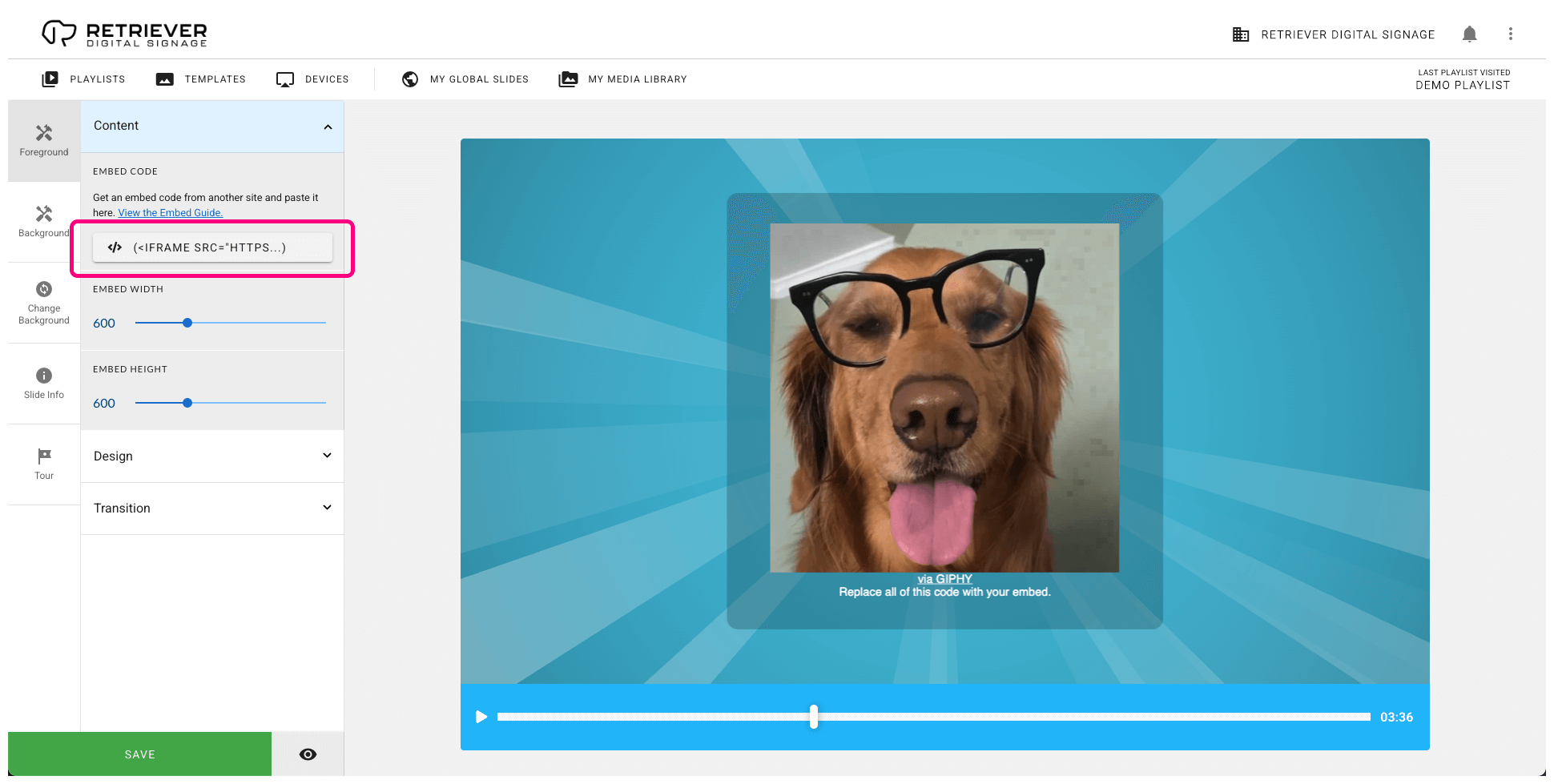
- On the Retriever, add the “Embed” template to your playlist.
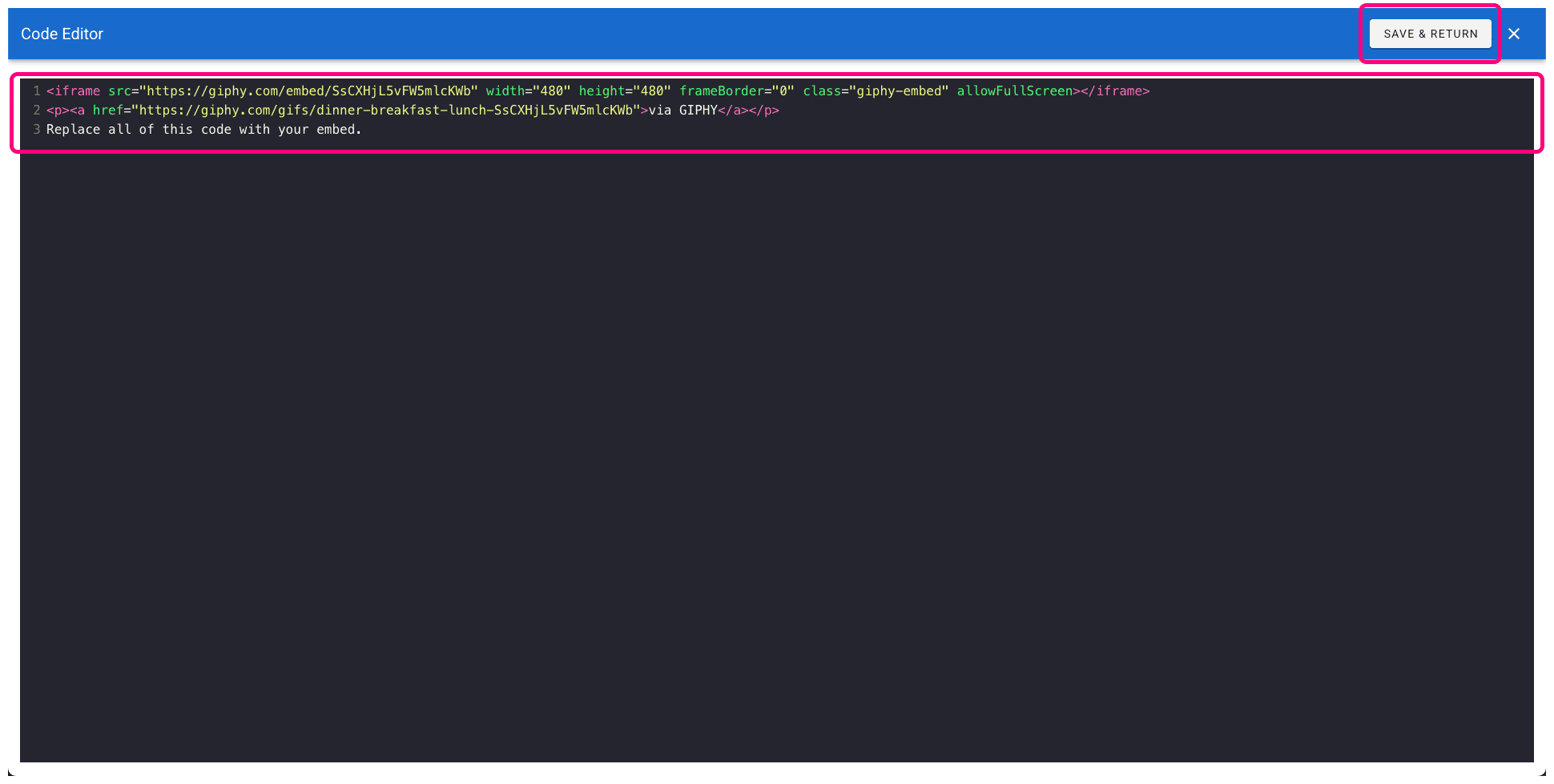
- In the slide editor sidebar, edit the “Embed Code” field and replace it with the code that you copied in step 1.
- Click “Save and Return” to see your embedded content in the slide.
Step 3
Other Settings
You may want to adjust the other slide settings. Here are some of the settings related specifically to the embed slide.
- Embed Width and Embed Height — Depending on the specific content you are embedding, it may have an intrinsic size or it may be responsive. These width and height settings can be used to match the intrinsic size of the content, or they can be used to imitate the size of different devices or displays for responsive content.
- Horizontal Alignment and Vertical Alignment — These settings are in the “Design” category. Options include “Left,” “Center/Middle,” “Right,” and “Stretch,” but some of these options may only be useful for certain types of content.
- For example, changing the horizontal alignment from “Left” to “Right” may not change the text alignment inside an “iframe,” but it may align the “iframe” itself to the right.
- Setting the vertical alignment to “Stretch” may sometimes be used to add space between multiple elements.
- Full Size — This setting is in the “Design” category. If you toggle this on, the slide attempts to make the first element fill the embed area by making it as wide and tall as the “Embed Width” and “Embed Height” settings allow. Turn this off if your embed includes multiple elements.
Troubleshooting
Possible Errors
The Embed Fails to Load
If the embedded content does not display correctly, here are some things to try.
- Make sure the code you copied is complete.
- Make sure you have replaced everything in the “Embed Code” editor with the new code you are adding.
- Check the documentation from the service you are using to see if they have troubleshooting help.
The Slide Does Not Play on Device
If the “Embed” slide does not play on your Retriever device, there are several possible reasons.
- Make sure the slide is published on a playlist that is assigned to the correct device.
- Since this slide loads content directly from the Internet, it requires an Internet connection, so make sure the device is online. You can check this in the Retriever interface by going to “Devices.” The last time the device was online will show next to it in the list. If it is offline, follow these instructions for common fixes.
- Make sure the embed code is correct and complete.