Global slides are slides that you create once but can use in multiple playlists and on multiple devices and screens. A global slide can be edited once and updates everywhere automatically.
Here’s why that matters:
- Single source of truth: Instead of making duplicate slides (one for each playlist or screen), you make one “global” version.
- Consistency: When you update the global slide, the change propagates everywhere it’s used.
- Efficiency: This saves time, particularly when you run signage across many locations (or many screens) that need to show the same messages.
Training Video: Global Slides
We also have a training video that walks you through the process of using global slides. If you just need a quick overview, check out that video. If you need more in-depth direction, keep reading.
Step-by-Step Instructions
How to Create and Use Global Slides
How to create a global slide on multiple playlists
- Go to the Retriever “Templates” tab and select the slide template you want to use as a global slide.
- Select two or more playlists from your list of playlists. A toggle will appear for “Global sync.” The toggle is “on” by default.
- Click “Add to playlist” and edit the slide like normal. Any changes you make will apply to this slide on all playlists you selected, including publish state and schedule.

How to add an existing global slide to one or more playlists
- If you have previously crated any global slides, go to the “My Global Slides” tab and select the global slide you want to add to another playlist.
- You will see a list of playlists on which the global slide is active (if any) and a list of all available playlists under the heading “Add instance to Playlists.”
- Select as many playlists as you want, then click the “Add to Playlist(s)” button.
- You will be directed to the slide designer where you may edit the global slide.
- If the global slide was unpublished, you may publish it by clicking “Save” and then “Publish.” Or you may return to the playlist without publishing it.
- If the global slide was already published, you do not need to save or publish it unless you make any changes.
Multiple Instances in a Playlist
A global slide may be added to as many playlists as you want, but it may also be added to the same playlist multiple times. This is a good option if you have a longer playlist but want the same important message to appear after every few slides.

How to convert a regular slide to a global slide
- Go to your playlist and find the slide you want to convert to a global slide.
- In the three-dots menu, select “Make Slide Global” and confirm in the popup by clicking “Make it global.”
- This can also be done from the slide settings page.
- If you have multiple slides that you want to convert to global slides, you can use “Select Mode” from the top bar then choose “Change Global.”
- The slide will now have a globe icon to show it is a global slide, and it will be available in the “My Global Slides” tab to be used in other playlists.


How to convert a global slide to a regular slide
- Go to your playlist and find the slide you want to convert from a global slide to a regular slide.
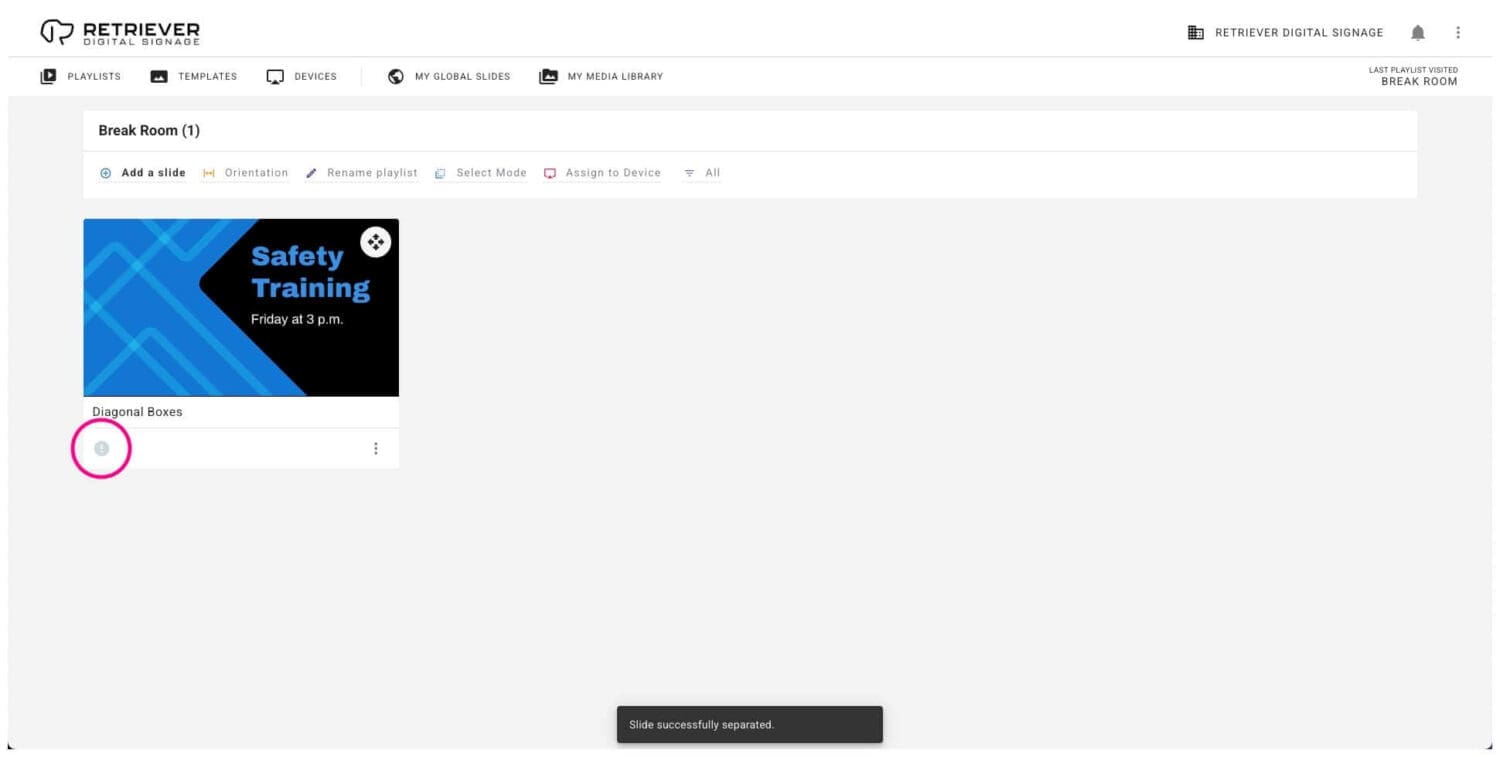
- In the three-dots menu, select “Separate Slide” and confirm in the popup by clicking “Separate Slide.”
- If you have multiple slides that you want to separate from global slides, you can use “Select Mode” from the top bar then choose “Change Global.”
- The slide will no longer stay in sync with other instances of the global slide across your playlists.
- The newly separated slide will be unpublished by default. Remember to publish it once you have made any changes.
- The global version of the slide will continue to be available in the “My Global Slides” tab even if you separate or remove all instances from your playlists.

Publishing and Unpublishing Global Slides
Global slides may be published and unpublished just like regular slides. When you publish or unpublish a global slide, all instances of the slide will do the same.
- Locate the global slide, either in a playlist that uses it or in the “My Global Slides” tab.
- There are multiple ways to change the publish state:
- Click the globe icon to toggle the publish state.
- In the three-dots menu, select “Publish Slide” or “Unpublish Slide.”
- Go to the slide settings page (available in the three-dots menu) and select “Publish this slide” or “Unpublish this slide.”
Scheduling Global Slides
Global slides may be scheduled just like regular slides. When you schedule a global slide, the schedule will apply to all instances of the slide.
- Locate the global slide, either in a playlist that uses it or in the “My Global Slides” tab.
- Go to the slide settings page (available in the three-dots menu). From there, you can add schedules as usual. See our documentation on scheduling slides.
When (and Why) to Use Global Slides
Global slides can be used in many ways to make managing your digital signage easier and more efficient.
- Multiple Locations
- Use global slides to communicate across your organization’s branches, offices, stores, or campuses. For example, you could set up a branded welcome message assigned to all playlists. This keeps everything consistent and on-brand. Plus, if anything about your branding changes — like you have a new tagline or slogan — then all locations can easily be updated by editing a single slide.
- Common Announcements
- There may be many messages you want to deploy company-wide, such as safety policies or in-store specials. Use a global slide to push that message to every screen simultaneously. Later, when the message is no longer needed, you can update or unpublish it globally.
- Recurring Campaigns and Promotions
- If you run a monthly promotion (e.g., “March Special: 20% off”), you could create a global promo slide. By simply updating the design and content of that slide, you can keep fresh, timely content in front of customers.
Why This Feature Matters
- Scalability: For organizations that scale up with more screens at more locations, global slides make it massively easier to maintain and update content.
- Save Time: You can reduce repetitive work by editing once and deploying everywhere.
- Reduce Errors: By managing fewer slides that are reused, there is less chance of inconsistency, typos, or outdated info. If any mistakes are made, they can be effortlessly corrected across your entire organization.
- Flexibility: You can mix global slides with local slides that are specific to a playlist or location to balance consistency with customization.