Step 1
Copy the Website URL
- Navigate to the website you want to embed.
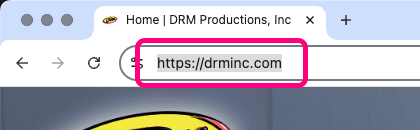
- Select the URL in the address bar.
- Copy the URL to your clipboard.
- Make sure to include the beginning part that starts with “http://” or “https://”.
Step 2
Paste the URL Into the Retriever Slide
- On the Retriever, add the “Website Wrapper” template to your playlist.
- In the slide editor sidebar, edit the “Web Address (URL)” field and replace it with the URL that you copied in step 1.
- The slide preview should update to display the website.

Step 3
Other Settings
You may want to adjust the other slide settings. Here are some of the settings related specifically to the “Website Wrapper” embed slide.
- Width — Many websites are responsive and resize automatically. This width setting imitates the width of different devices or displays. By adjusting this width, the Retriever will use the size that works best for a particular website. In general, a lower value will make text bigger and a higher value will make text smaller, but that is dependent on how the website itself is coded.
- Page Offset (in Pixels) — This setting is in the “Advanced Settings” category. Use this setting to emulate scrolling down the page of the embedded website. This can be useful for cropping off a header or just moving down to a section that is lower on the page.
Troubleshooting
Possible Errors
“Not a valid URL” Error Message
If the “Web Address (URL)” field displays an error after you paste the website URL, then the URL is likely incomplete.

To fix this error:
- Navigate to the website you want to embed.
- Select the URL in the address bar.
- Copy the URL to your clipboard.
- Make sure to include the beginning part that starts with “http://” or “https://”.
- Paste the URL into the “Web Address (URL)” field again including the HTTP prefix.
The Website Fails to Load
If the slide shows an empty box with a broken file icon or error message, that means the website you are trying to embed is deliberately blocking the embed.

To fix this error:
- Many large sites disallow embedding for security reasons to prevent another site from impersonating them. These sites cannot be embedded on Retriever.
- If you are embedding your own company’s website, contact your website developers to allow embedding the site in iframes by adjusting the X-Frame-Options header or Content-Security-Policy frame-ancestors directive.
The Slide Does Not Play on Device
If the “Website Wrapper” slide does not play on your Retriever device, there are several possible reasons.
- Make sure the slide is published on a playlist that is assigned to the correct device.
- Since this slide loads content directly from the Internet, it requires an Internet connection, so make sure the device is online. You can check this in the Retriever interface by going to “Devices.” The last time the device was online will show next to it in the list. If it is offline, follow these instructions for common fixes.
- Make sure the website URL is correct and complete (see the “Not a valid URL” section above).