Option 1
Share a YouTube Video on Digital Signage with URL or Embed Code
- On YouTube, find the video you want to embed.
- You can embed any public video.
- Private videos and live videos are not supported.
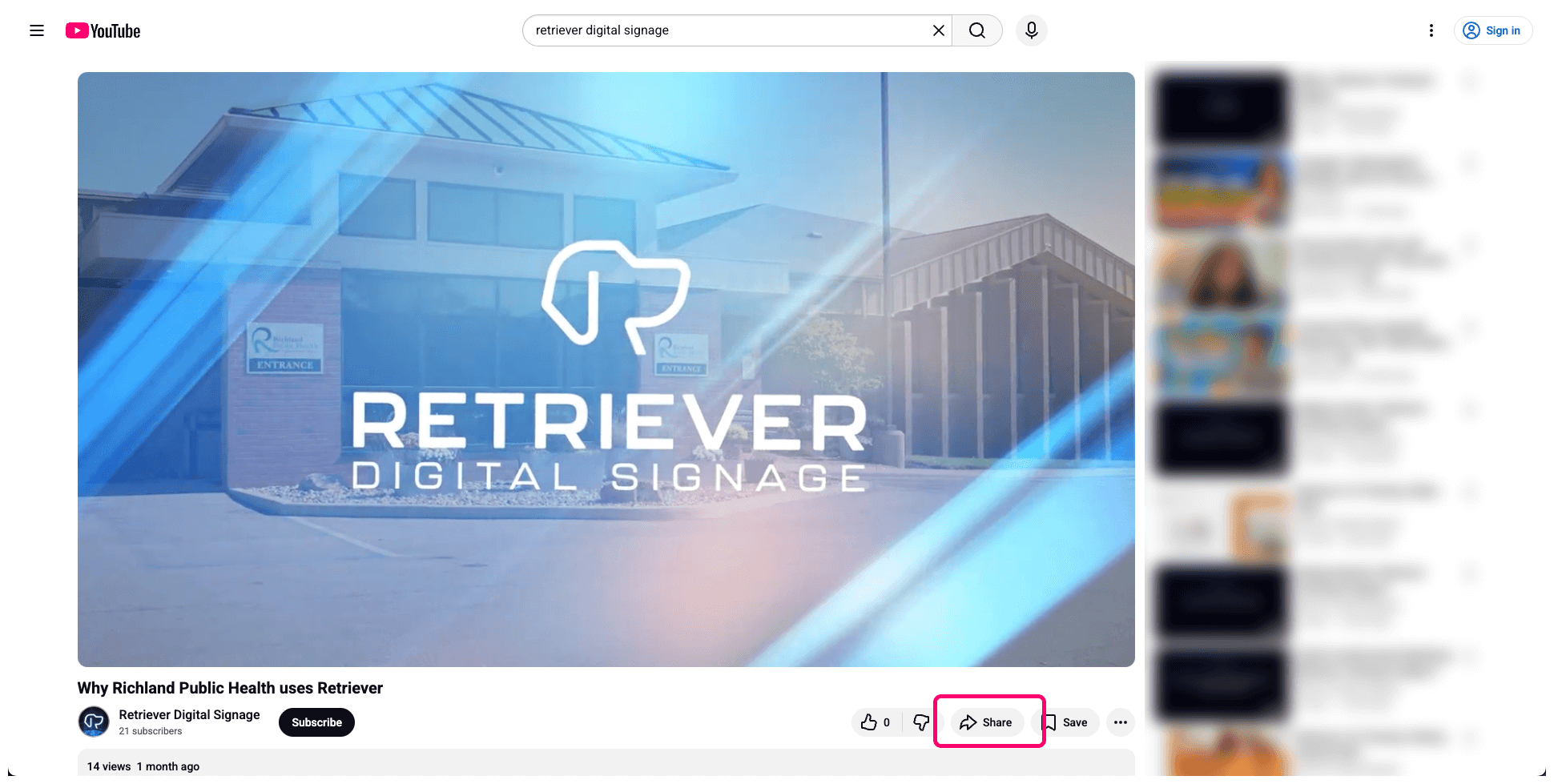
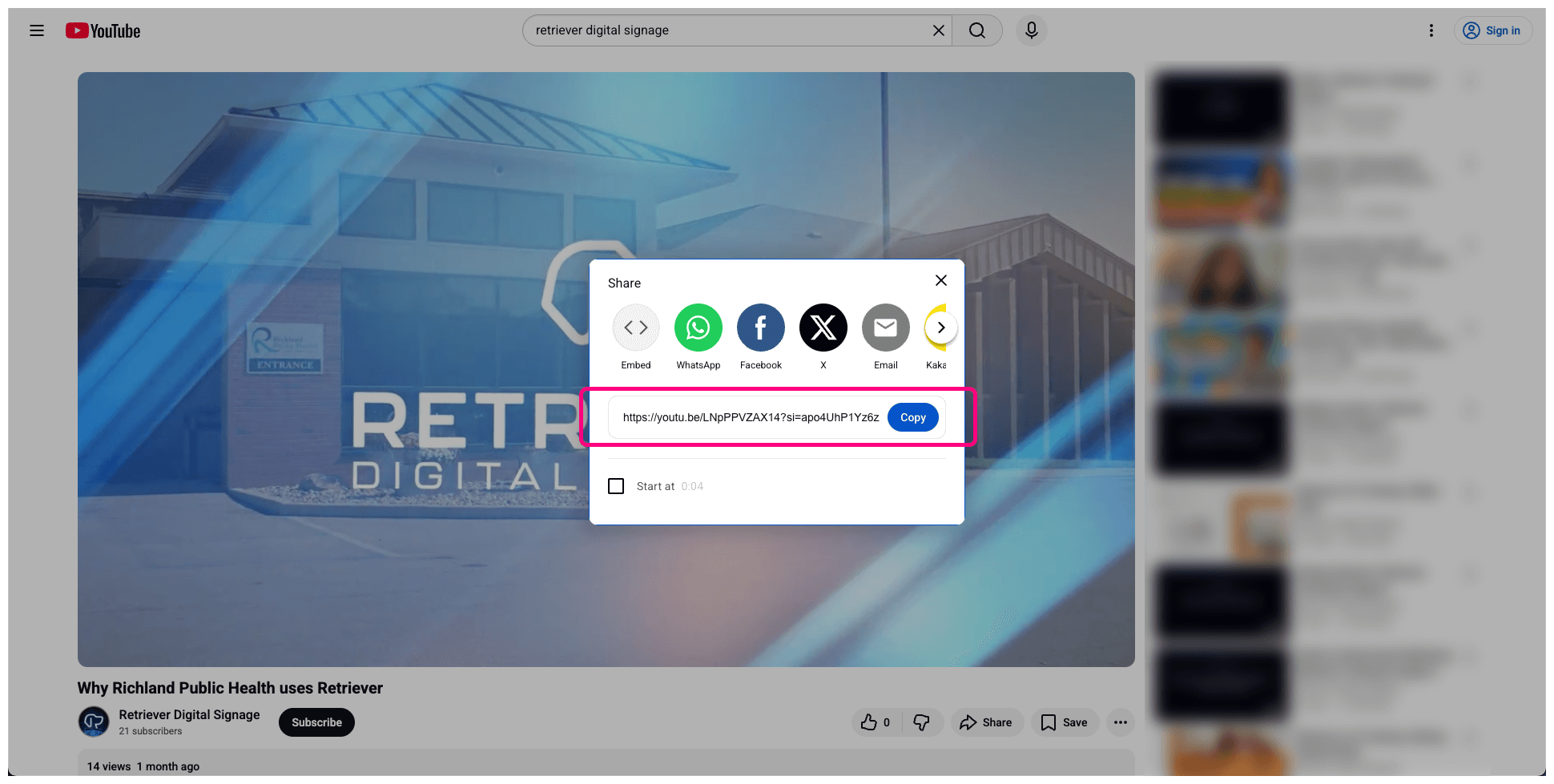
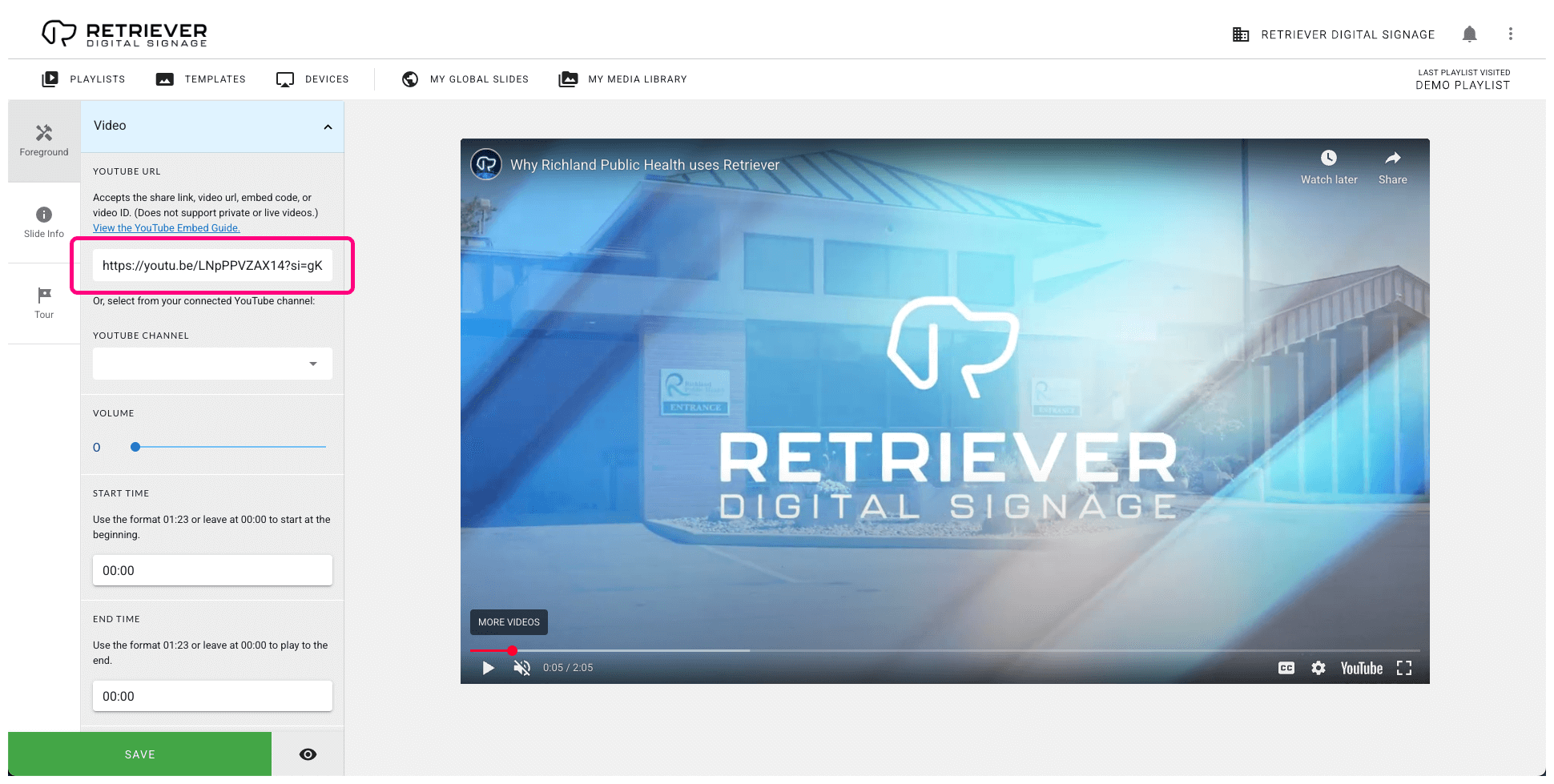
- Click the “Share” button below the video, then click “Copy” from the popup to copy the link to your clipboard.
- Alternately, this Retriever slide accepts the page URL or the embed code.
- On the Retriever, add the “YouTube Embed” template to your playlist.
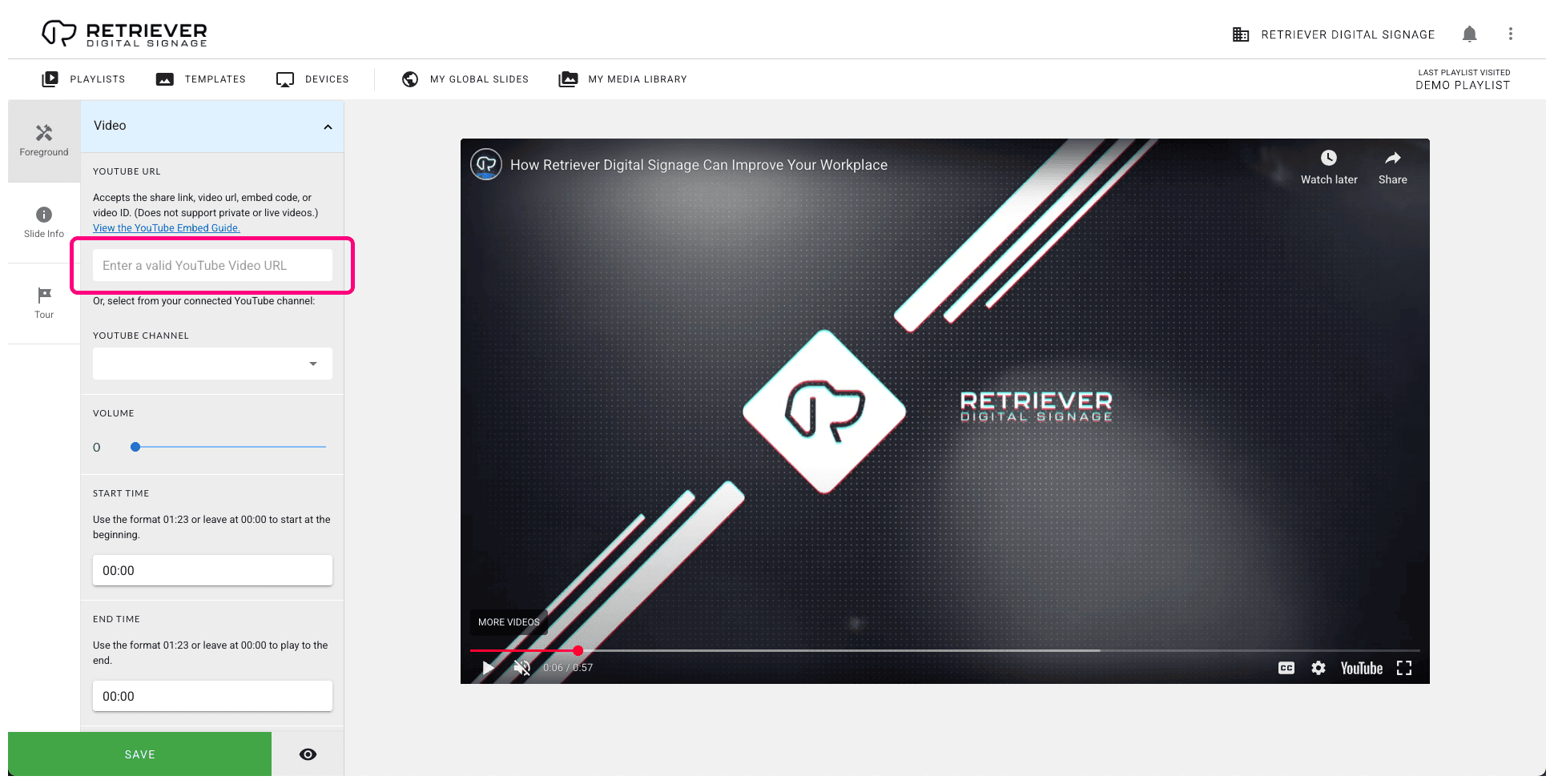
- In the slide editor sidebar, edit the “YouTube URL” field and replace it with the share link that you copied from YouTube.
Option 2
Connect a YouTube Channel to Digital Signage
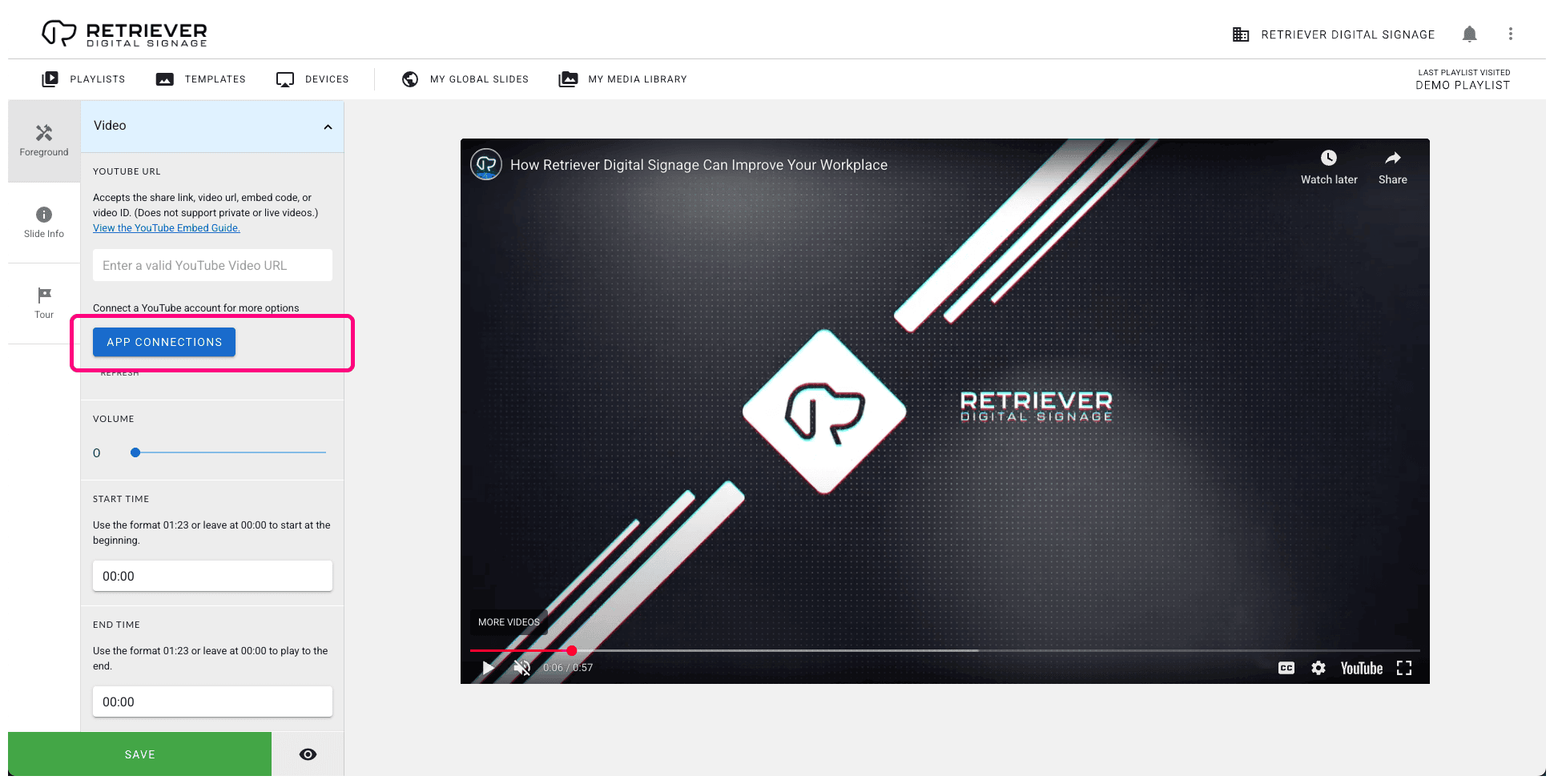
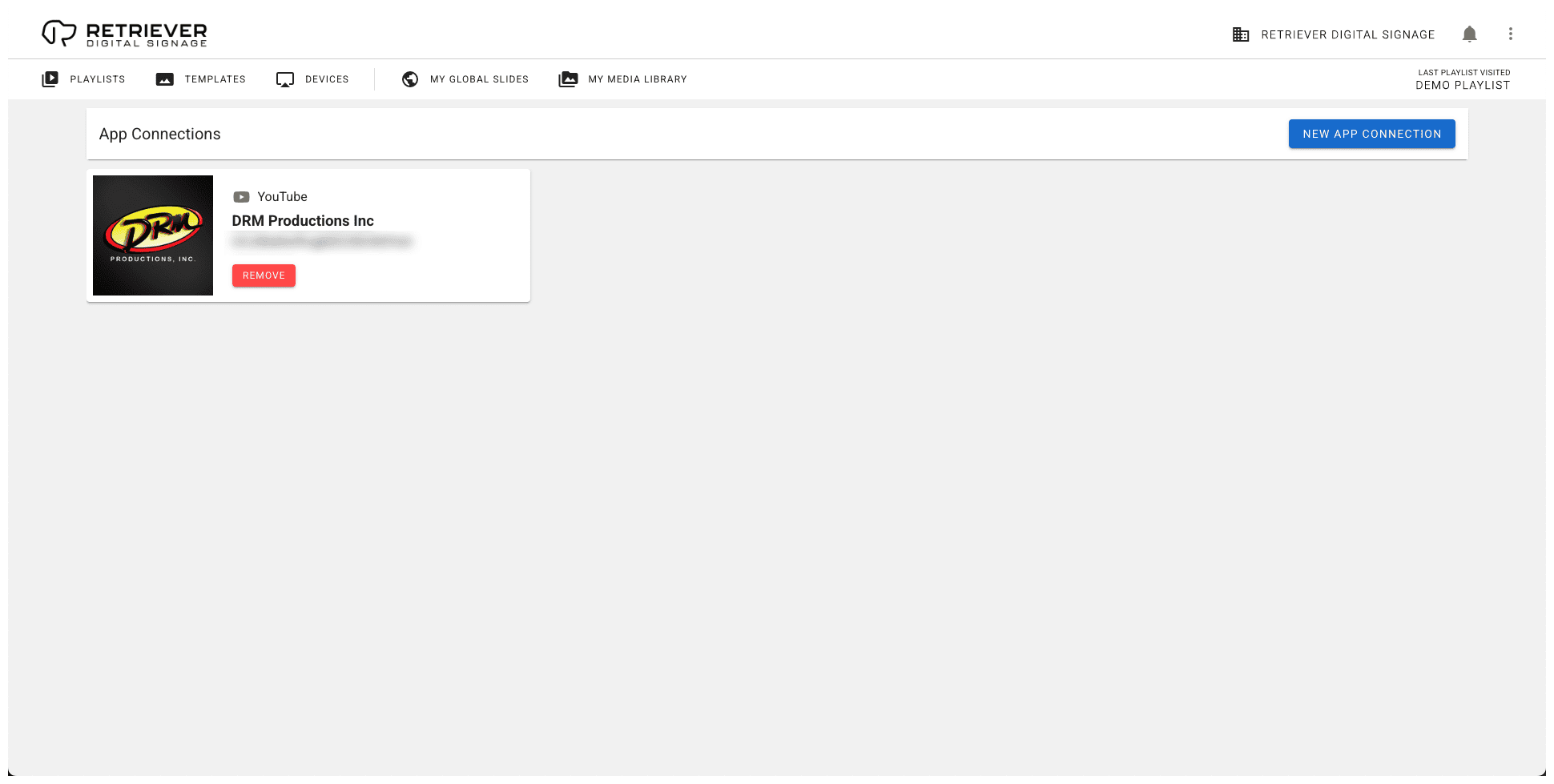
- On the Retriever, add the “YouTube Embed” template to your playlist and click the “App Connections” button.
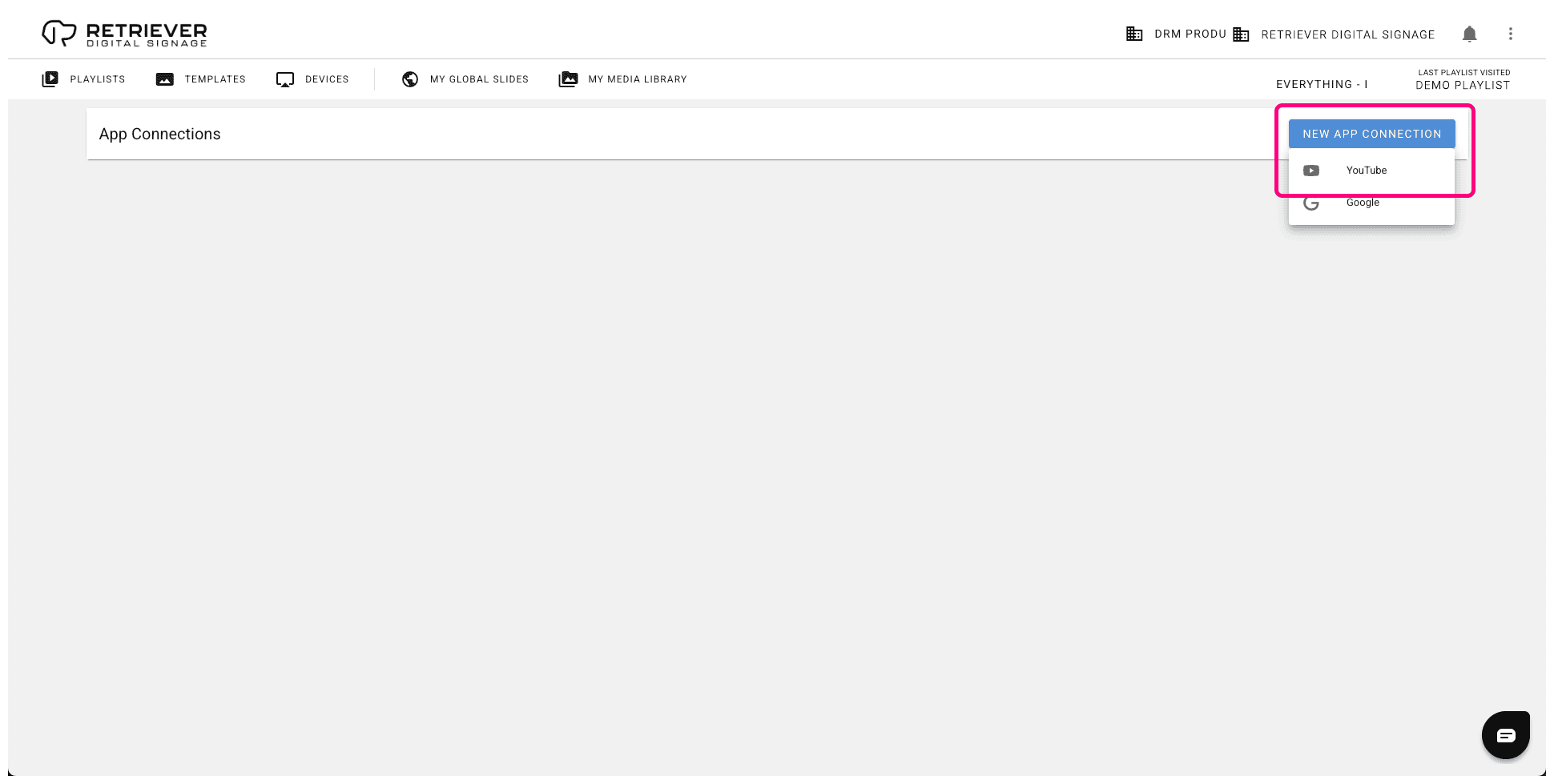
- Tip: You can access and edit app connections at any time from the three dots menu at the top right of the Retriever interface.
- Click the “Add Connection” button and choose “YouTube”.
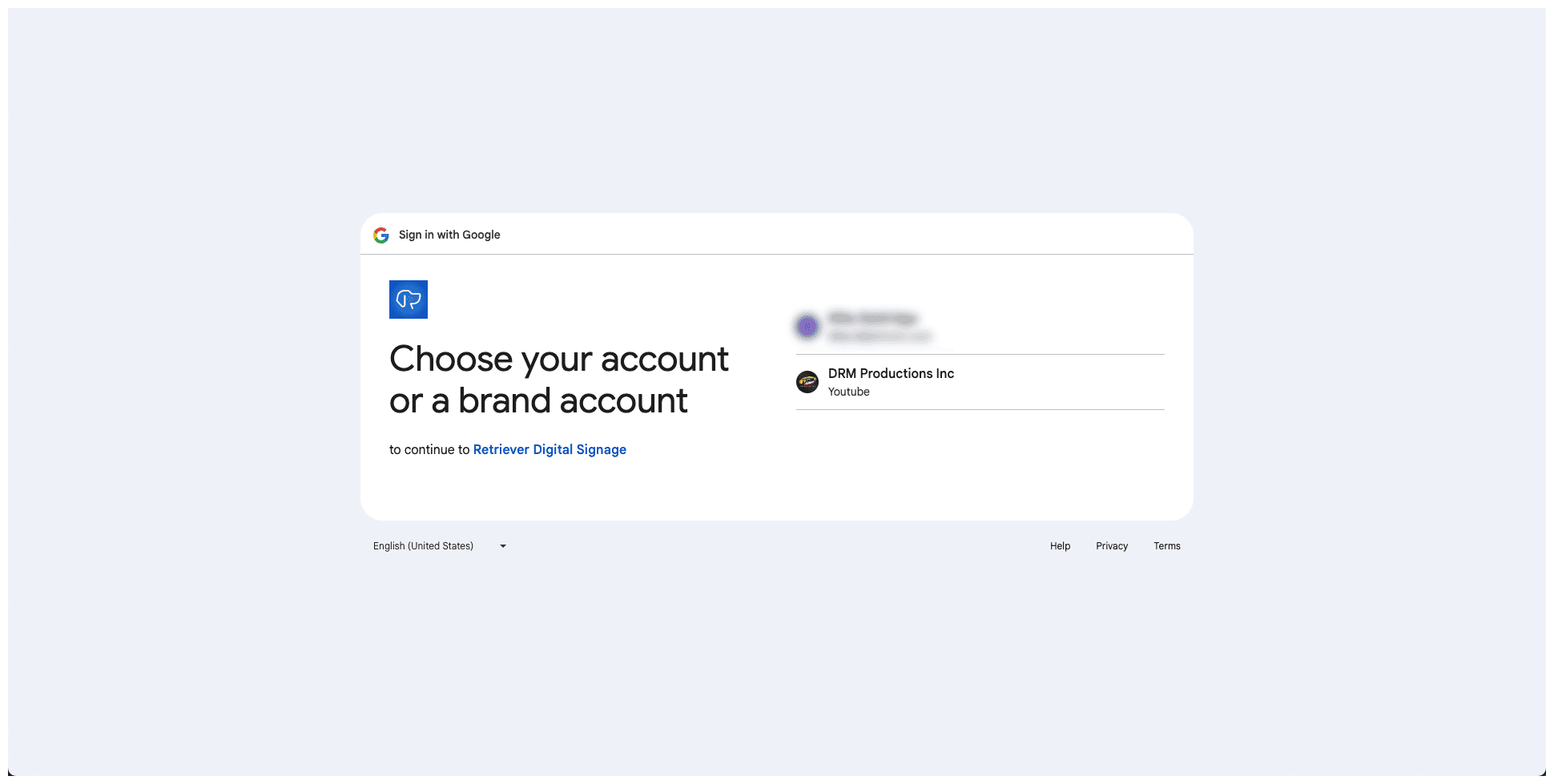
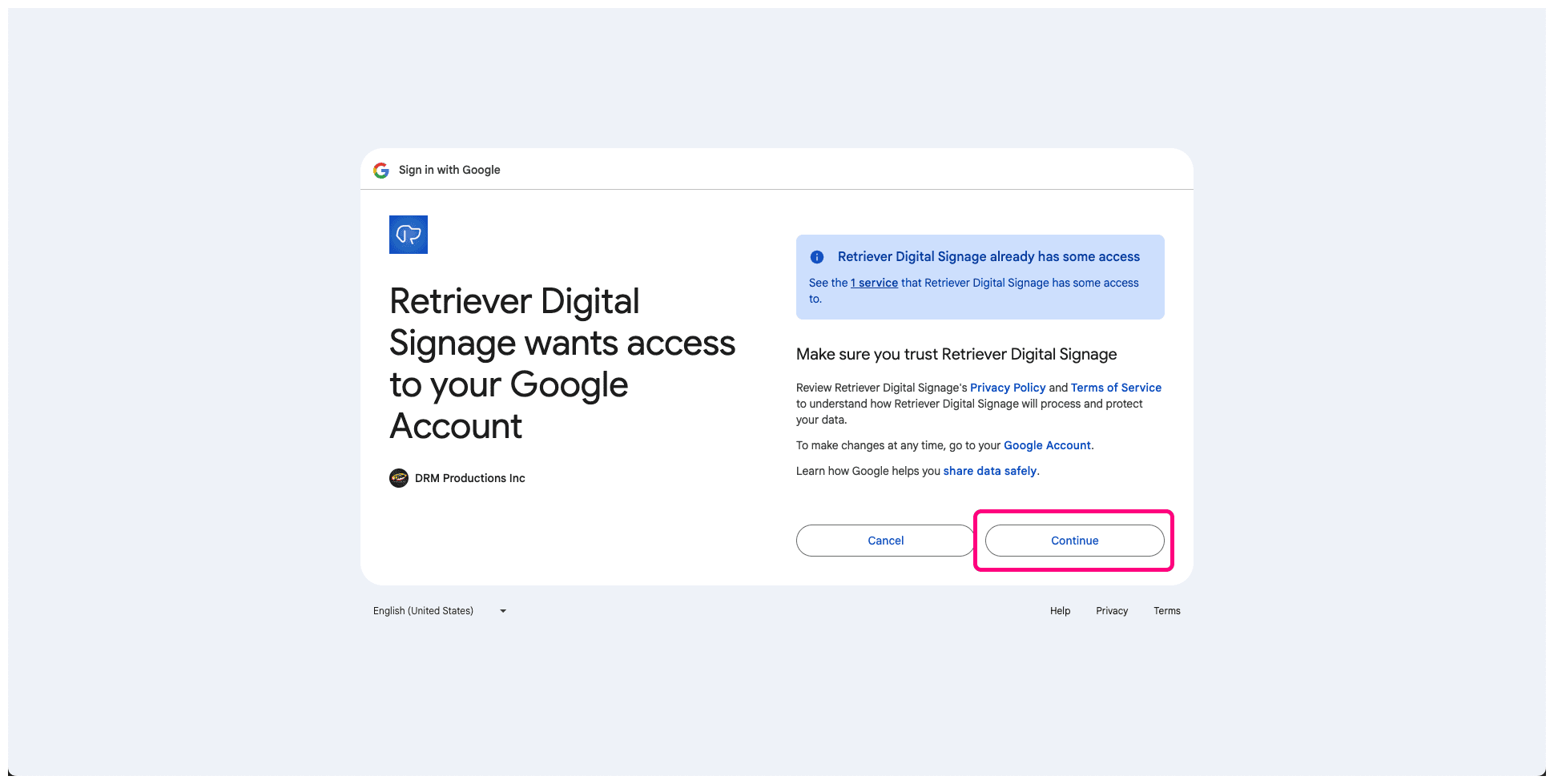
- Select the account you want to connect. When you reach the screen that says, “Retriever Digital Signage wants to access your Google Account,” click “Continue” to connect your account. Your YouTube account will now show in the list of app connections.
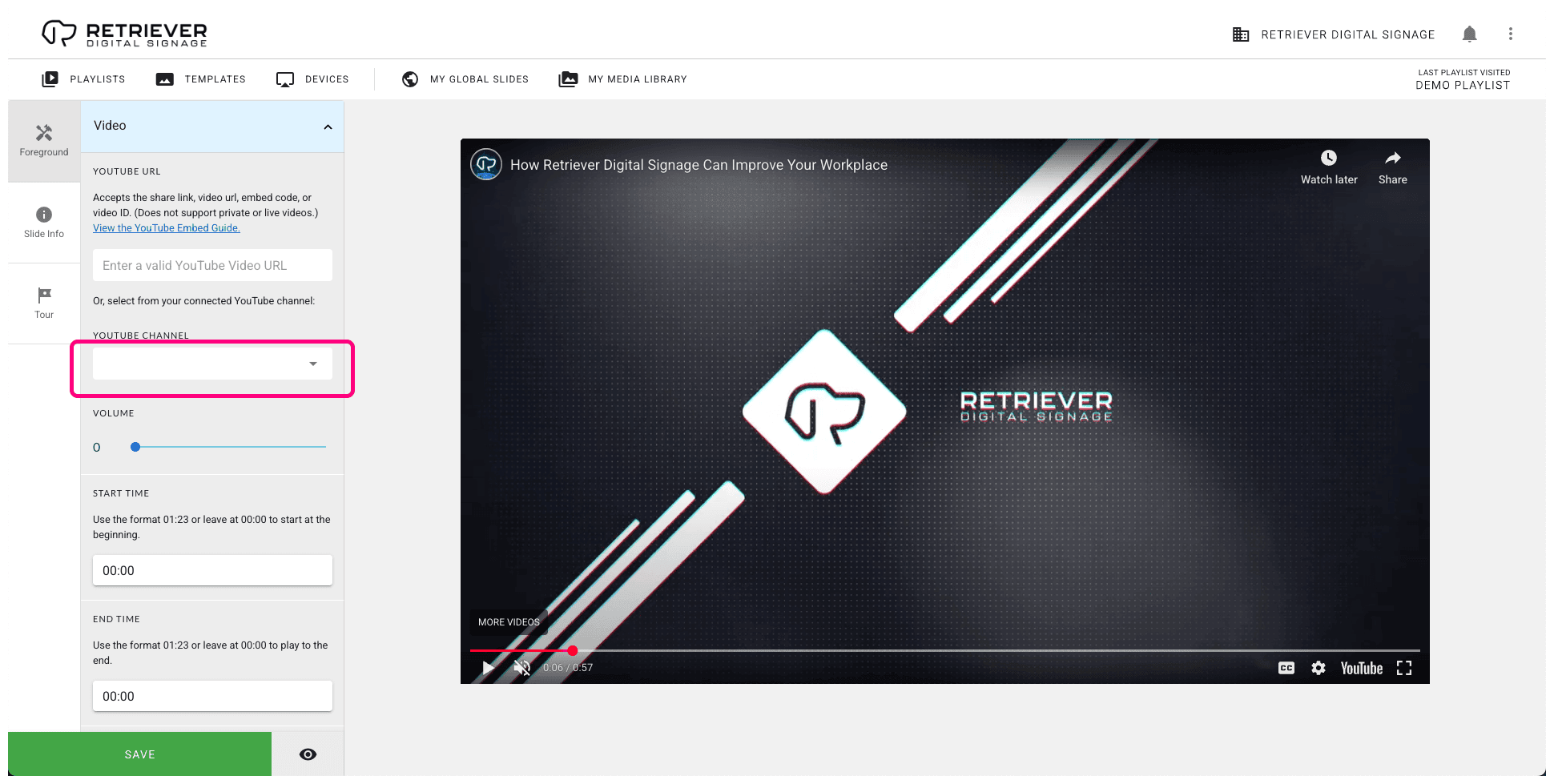
- Return to the “YouTube Embed” slide. You may need to click the small “Refresh” button to see the channel you just added.
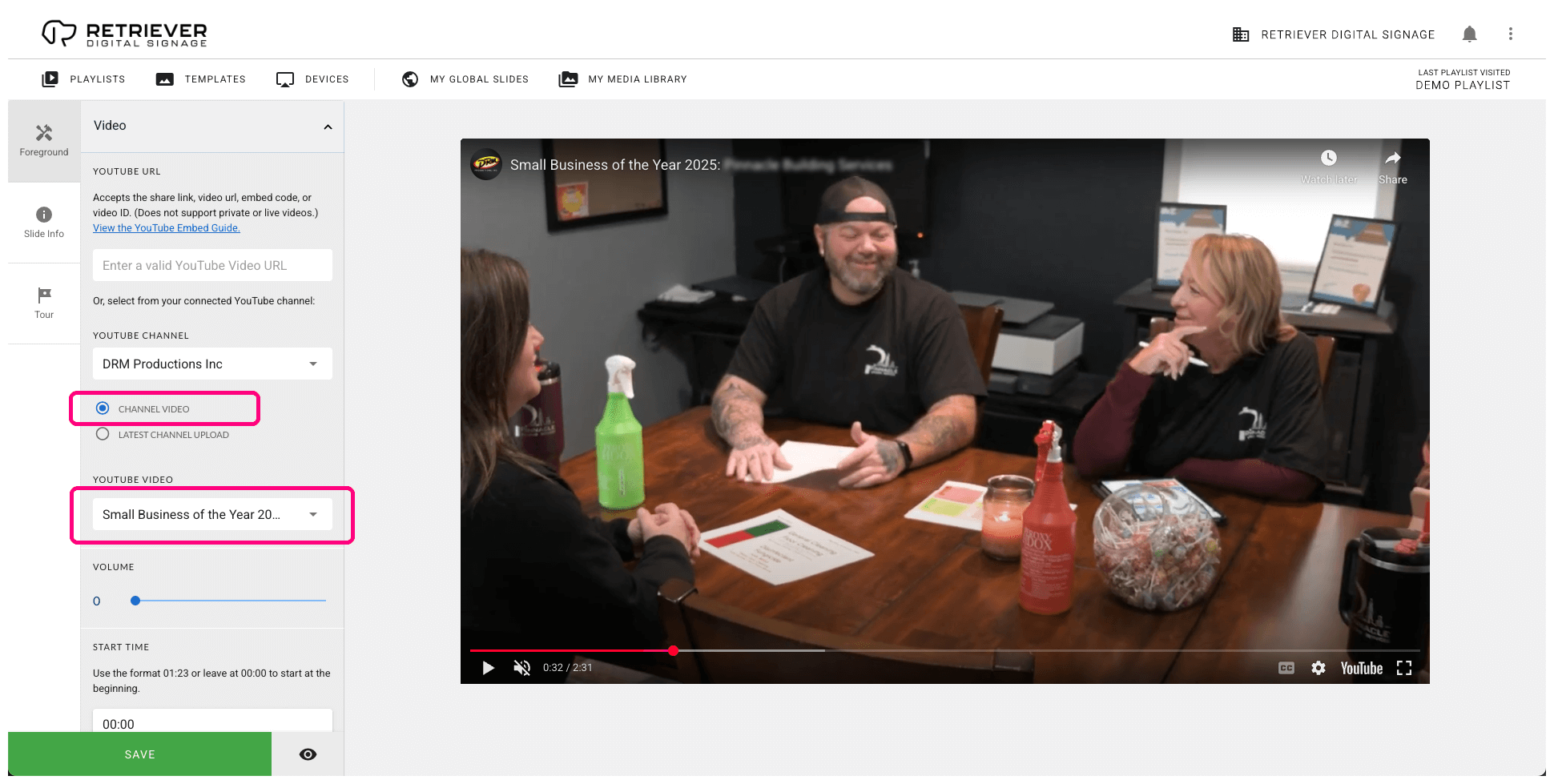
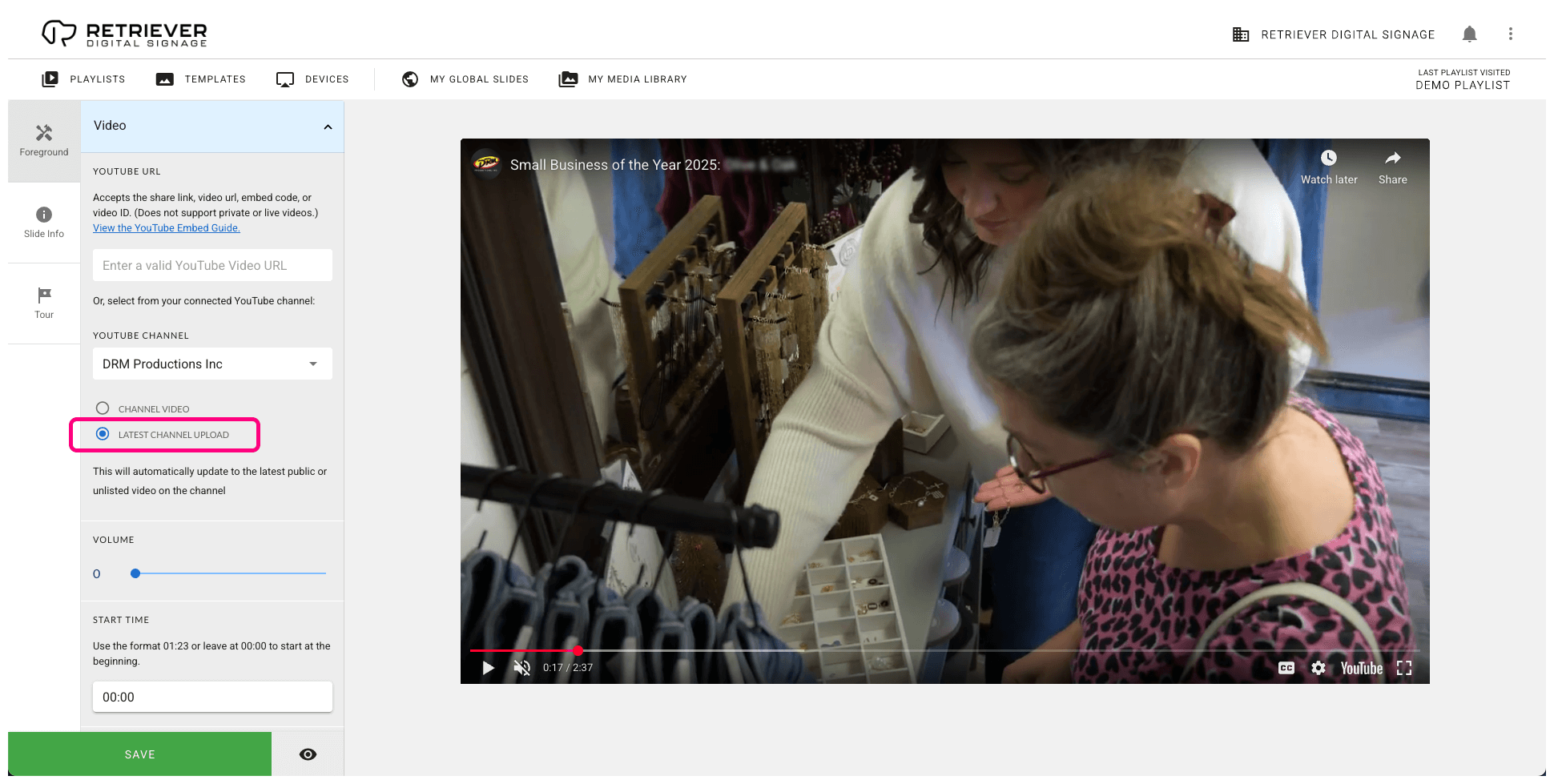
- Select the YouTube channel and you will be presented with two options: “Channel Video” or “Latest Channel Upload.”
- Select “Channel Video” to select a specific video from your channel.
- Select “Latest Channel Upload” to display the latest video from your channel. This will update automatically when you add a new video to your YouTube channel.
Additional
Other Settings
You may want to adjust the other slide settings. Here are the settings related specifically to the YouTube embed.
- Volume — Adjust the volume. “0” is muted and “100” is maximum volume. (The TV volume will also need to be turned up to hear this.)
- Start Time and End Time — Use these settings if you only want to play part of the video. Use the format 01:23 or leave at 00:00 to start at the beginning and play to the end, respectively.
- Max Buffer (seconds) — This is the number of seconds to wait while buffering. If the video buffers for longer than this, skip to the next slide. You should not need to change this unless your Internet connection is slow.
Troubleshooting
Possible Errors
YouTube Error Message
If the slide shows an error that a video is unavailable, then the video may have been deleted or the share link may be incorrect.
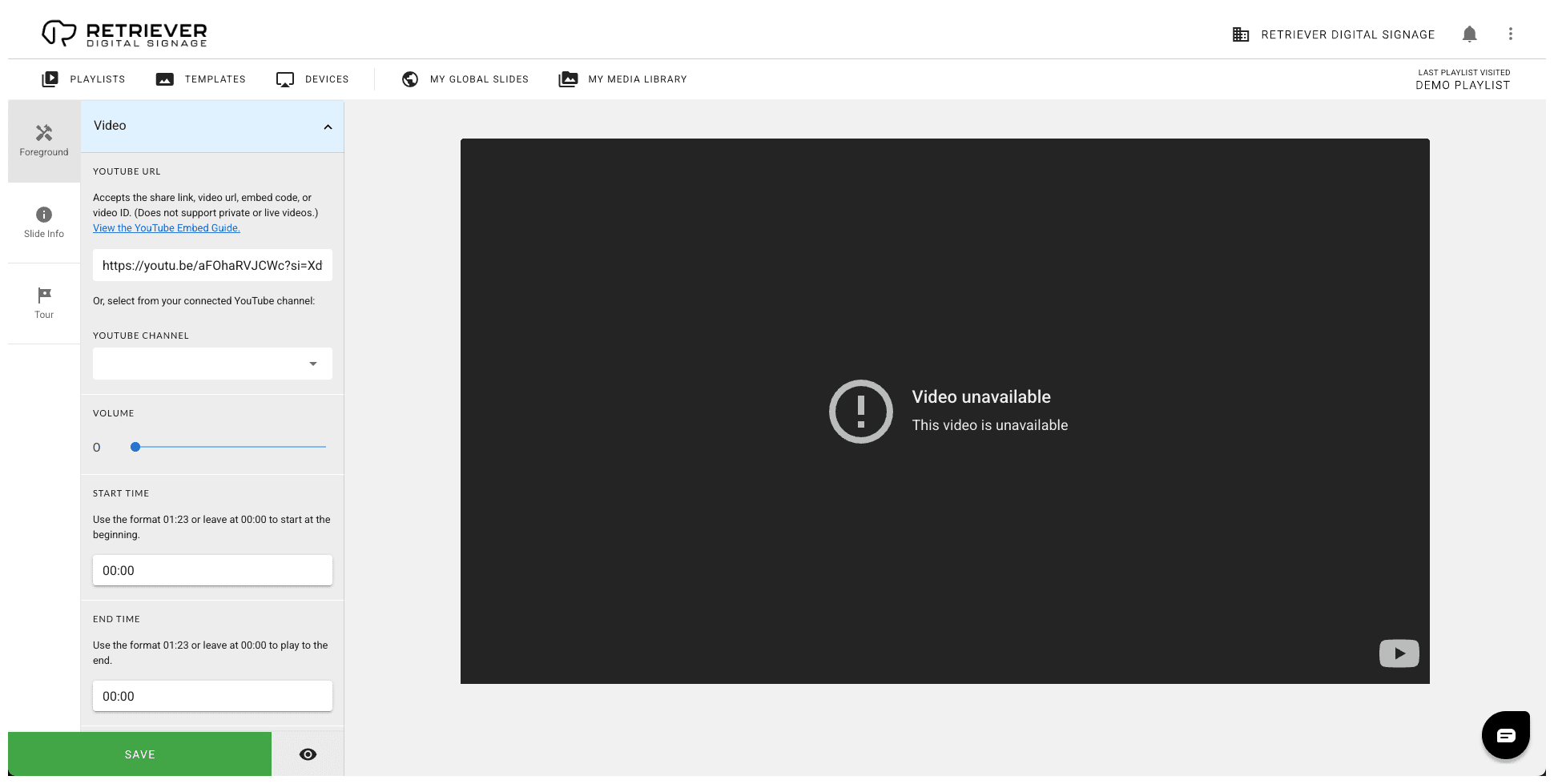
To fix this error:
- On YouTube, find the video you want to embed.
- Click the “Share” button below the video, then click “Copy” from the popup to copy the link to your clipboard.
- Return to the “YouTube Embed” template in your playlist.
- In the slide editor sidebar, edit the “YouTube URL” field and replace it with the share link that you copied from YouTube.
- Make sure that you replace everything in that field with the entire share link.
The Slide Does Not Play on Device
If the “YouTube Embed” slide does not play on your Retriever device, there are several possible reasons.
- Make sure the slide is published on a playlist that is assigned to the correct device.
- Since this slide loads content directly from YouTube, it requires an Internet connection, so make sure the device is online. You can check this in the Retriever interface by going to “Devices.” The last time the device was online will show next to it in the list. If it is offline, follow these instructions for common fixes.
- If you are using the share link, video url, embed code, or video ID, make sure it was copied and pasted correctly. (see “Option 1” above).